 Contact Support
 Sign In


If you want search engines to notice your WordPress site, you need to focus on SEO. Search engines use algorithms to understand your content, and that’s where schema markup comes in. It’s a code that helps search engines read your site more effectively.
This guide teaches you about schema markup and why it’s important. We also show you 2 different ways to add schema markup in WordPress. By the end, you’ll know how to implement schema to boost your SEO and make your site more visible in search engine results.
KEY TAKEAWAYS
- Schema markup enables search engines to interpret your content better and present it as rich snippets in search results.
- You can manually add schema markup in WordPress or use plugins for this purpose.
- Manual methods involve adding JSON-LD code through custom fields.
- Test your schema using Google’s Rich Results Test to ensure it is correctly implemented and free from errors.
- Regularly update and validate the schema to keep your content eligible for rich snippets and improve your SEO visibility.
TABLE OF CONTENTS
Understand WordPress Schema Markup
Schema markup is a type of structured data that helps search engines understand the content on your website. It’s a piece of code (using formats like JSON-LD, Microdata, or RDFa) you add to your site to provide extra details about your content.
Instead of just listing your content as plain text, schema tells search engines what each part of your content means. For instance, it may specify that a certain piece of text is a product name, a review, or an event date.
When search engines understand your content better, they can display it better through rich snippets, enhanced search results that show more information than regular listings. They can include star ratings, product prices, event dates, and even images. This extra information helps your content stand out and encourages readers/users to click on your link.
For example, if you run a recipe blog website, you can use schema markup to show the recipe’s name, cooking time, and star rating directly in search results.

A product page can also display price, availability, and user reviews, which makes your content more noticeable and can lead to higher click-through rates.

Schema markup and rich snippets work together to give search engines more context about your content. While schema provides the structure, rich snippets display that data visually in search results.
Adding schema markup isn’t just about making your site look good in search results; it’s also about assisting search engines in understanding and ranking your content better.
Why Implement Schema Markup in WordPress?
When you add structured data to WordPress, it not only organizes your content; it can also boost your visibility in search engines. Here’s how:
Improved Visibility in SERPs
Schema markup provides search engines with more context about your content, making it easier to understand. When search engines know exactly what your content is about, they can present it more effectively in search results.
Instead of a simple text link, your content may appear with additional information, such as ratings, images, or product prices. This makes your site stand out and grabs attention.
Increased Click-Through Rates (CTR)
When your content is displayed as a rich snippet with extra details, it’s more likely to get clicks. People are drawn to listings with star ratings, product prices, and event dates because they provide more information upfront. By making your content more informative and visually appealing, schema markup can drive more traffic to your site.
Better Alignment with Search Intent
Schema markup enables search engines to align your content with relevant search queries in the most effective manner. For instance, if someone searches for “best WordPress SEO plugins”, schema can indicate that your article is a review of plugins, complete with star ratings and user feedback. This makes your content more relevant to what people are searching for, leading to higher-quality traffic.
Enhanced Indexing & Crawling Efficiency
Search engines use bots (a.k.a crawlers) to crawl and index your WordPress site. Schema markup acts as a roadmap, guiding these bots through your content. It highlights key information, making it easier for search engines to understand and categorize your pages. The more effectively search engines interpret your content, the more precisely they can rank it.
In the coming section, we explain the different types of schema markup in WordPress and how to choose the right one for your content.
Common Types of Schema Markup
Schema markup comes in different types, each designed to give search engines specific information about your content. Here are some common schema types supported by search engines:
- Articles
- Events
- Videos
- FAQ
- Products
- Reviews
- Recipes
- Local Businesses.
Choosing the right schema type depends on the content you’re publishing. If you’re writing a blog post, the Article schema is the right choice. If you’re promoting a product, use the Product schema.
Adding the right schema type ensures search engines understand your content and present it in search results in the best possible way. Implementing relevant schema types not only helps your site get noticed but also improves user experience by providing more useful information directly in search results.
Examples of Schema Markup in Action
Schema markup can completely change how your content appears in search engine results pages (SERPs). Instead of a text link, schema can transform your listing into a rich snippet that grabs attention quickly. Let’s show you how schema markup makes a difference.
Imagine you are searching for the movie Guardians of the Galaxy on Google. The first result you see is from IMDB, and it includes a star rating and a review count. That’s schema markup at work.
Schema tells search engines that the content is a movie and includes specific details such as the rating, review count, and full cast and crew. Instead of just displaying the movie title and link, Google shows extra information that helps users decide if the movie is worth watching.

This type of schema markup can also be applied to other media content (e.g., TV shows). The added ratings and review sections can quickly engage the user and drive more clicks.
Star ratings can appear for different reviews, including those for restaurants, movies, books and even recipes. For instance, when you search for pasta recipes, you’ll not only see the star rating there, but you’ll also notice additional details about the recipe, such as a picture, preparation time, and required ingredients.

If you search for the game Minecraft, the schema will look as follows:
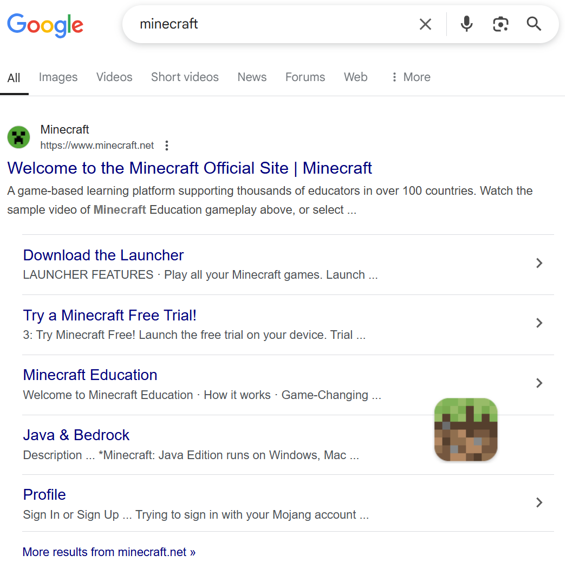
For a final example, let’s search for the name “Justin Trudeau”. Rather than showing star ratings like the previous examples, you’ll see a news-style schema.

By using schema markup, you help Google identify the key information to highlight, making it more likely to appear prominently in search results.
In the following section, we show you how to check your site for existing schema markup using a powerful testing tool.
Check for Existing Schema Markup in WordPress
Before adding new schema markup to your WordPress site, first check for any existing schema data. This helps you avoid duplicate or conflicting schemas, ensuring that search engines correctly interpret your content. The best tool for this purpose is Google’s Structured Data Testing Tool.
This tool allows you to inspect your website’s code and pinpoint existing schema types, as well as any errors or missing data. Here’s how:
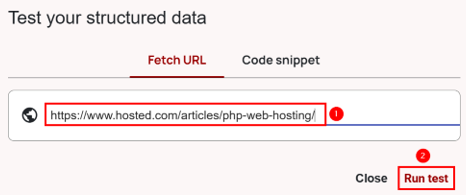
Go to Google’s Structured Data Testing Tool website. Click on Go to the Schema Markup Validator.

Provide your link and click Run test.
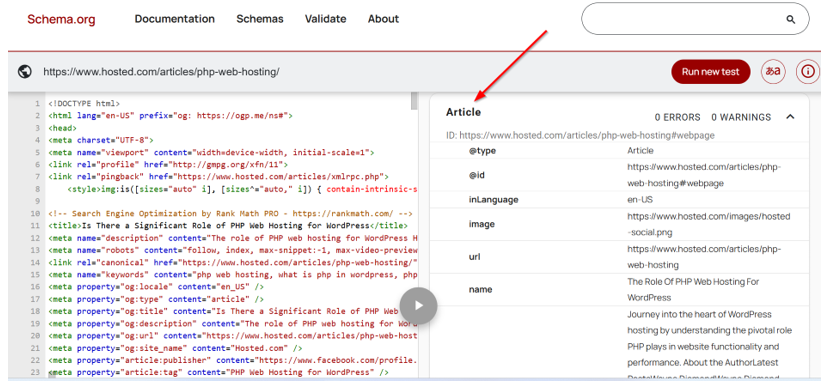
Once you run your site through the tool, you’ll be able to see the active schema types and any errors that need attention. In our example, the Article schema is active.
In the next section, we explain how to add schema in WordPress manually and using plugins.
How to Add Schema Markup in WordPress
In this section, we’ll learn two ways to add WordPress schema:
- Add Schema Markup in WordPress Using Plugins.
- Add WordPress Schema Manually.
Let’s start with an easy approach first.
Use a Plugin to Add Schema Markup in WordPress
Adding schema to your WordPress site can significantly improve your search engine visibility by displaying additional details in search results. While you can manually add schema using JSON-LD (we’ll learn about this in the coming section), using a plugin is a simpler and faster method.
There are various plugins for this purpose, including Schema – All In One Schema Rich Snippets, Schema Pro, and WP SEO Structured Data Schema. For our example, we use the Schema – All In One Schema Rich Snippets plugin.
Here’s how to set it up and use it:
Navigate to your WordPress Dashboard → Plugins → Add New. Next, search for Schema – All In One Schema Rich Snippets. When it appears, click Install Now and then Activate.

After activation, you’ll see a new menu item called Rich Snippets in your WordPress Admin Dashboard.

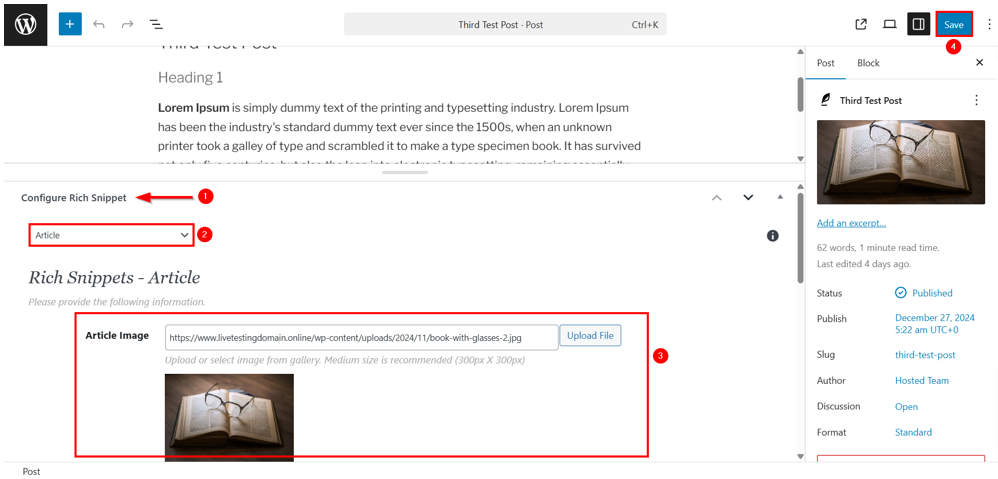
Now, go to Posts → All Posts or Pages → All Pages. Open the post/page where you want to add schema markup. Here, you’ll find a meta box called Configure Rich Snippet below the content editor.
Choose the suitable content type to customize the fields that will appear when adding schema data to a post or page. For example, select:
- Article to enable schema markup for blog posts or news articles.
- Review to add review schema with ratings, author, and review date.
- Product to include product schema with price, availability, and product image.
- Event to add event schema with event dates, location, and description.
We chose Article in our example, because we want to add schema markup in a WordPress post.
Each schema type has specific fields. In our example, the Article schema has the following fields:
- Article Image
- Article Name
- Short Description
- Author
- Publisher – Organization
- Publisher Logo.
Fill in the schema fields. Once done, click Save in the top right corner to save the schema markup data.
Now, it’s time to validate the schema markup in WordPress. Open the post or page where you added the schema markup. Copy the URL. Then, go to Google’s Rich Results Test Tool. Paste the URL and click TEST URL.
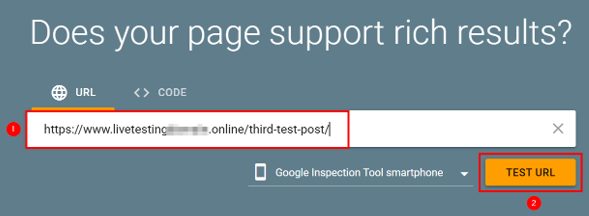
If it’s correctly recognized, you’ll see the following screen:
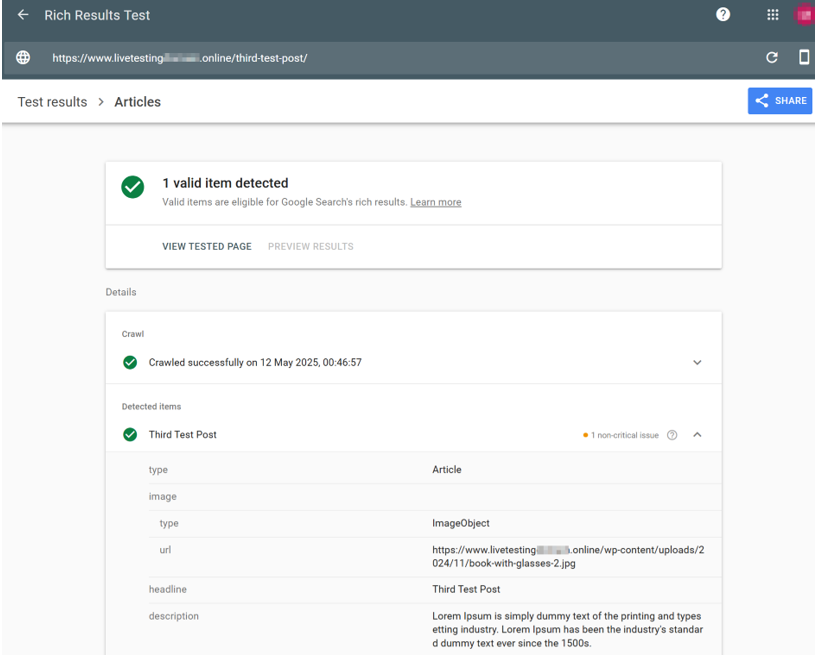
Note: Ensure the schema data remains accurate, especially for time-sensitive content like events or product availability. If you edit the post content, ensure you update the schema data accordingly. Schema markup requirements may change, so keep the plugin updated to maintain compatibility with Google’s latest guidelines.
Easy website management with 1-click installs, cPanel access, and expert support available whenever you need assistance.
Add Schema Markup in WordPress Manually
Adding schema markup manually to your WordPress site lets you customize the information displayed in search results. Instead of depending solely on plugins, you can create a custom schema for specific posts and pages. This method is more code-intensive but provides greater flexibility.
The best way to add schema manually is by using JavaScript Object Notation for Linked Data (JSON-LD). It’s a JavaScript-based format used to structure data in a way that search engines can easily understand.
Google recommends it because it’s easier to read, write, and debug compared to other schema formats.
In the following steps, we show you how to add schema markup manually using JSON-LD and Custom fields:
Open your post/page in the WordPress editor. Click on ⋮ (in the top-right) and choose Preferences.

Under General preferences, navigate to Advanced and enable the Custom fields option. Then, click Show & Reload Page to apply this change.
Why did we enable it? Enabling custom fields allows you to insert schema data directly into individual posts and pages.
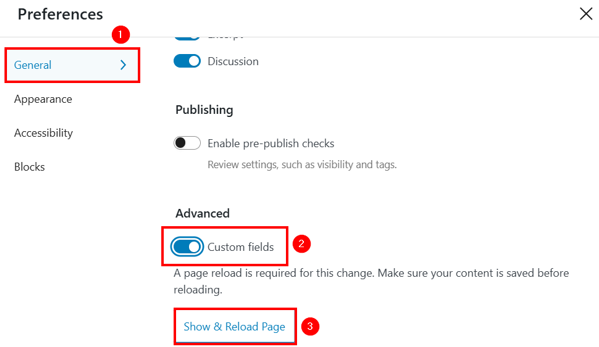
Now that custom fields are enabled, follow these steps to add schema markup to a WordPress page:
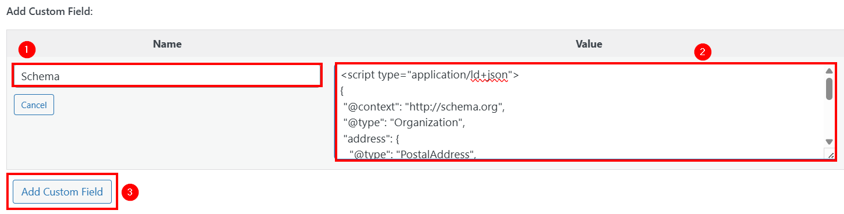
Scroll down to Add Custom Field. Click Enter new to create a new custom field.
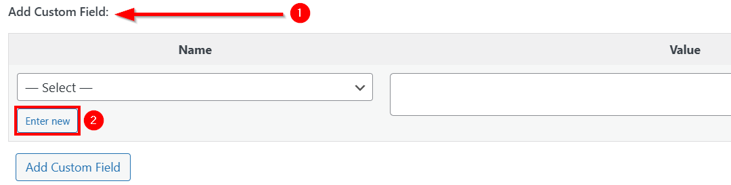
Name the custom field Schema (or any preferred name). In the Value box, paste the following JSON-LD code as a sample for a local business:
<script type="application/ld+json">
{
"@context": "http://schema.org",
"@type": "Organization",
"address": {
"@type": "PostalAddress",
"addressRegion": "US",
"streetAddress": "123 Random Road"
},
"description": "The Organization has been run by the XYZ Team.",
"name": "XYZ Organization",
"telephone": "(0)12 34 56 789"
}
</script>
Then, click Add Custom Field.
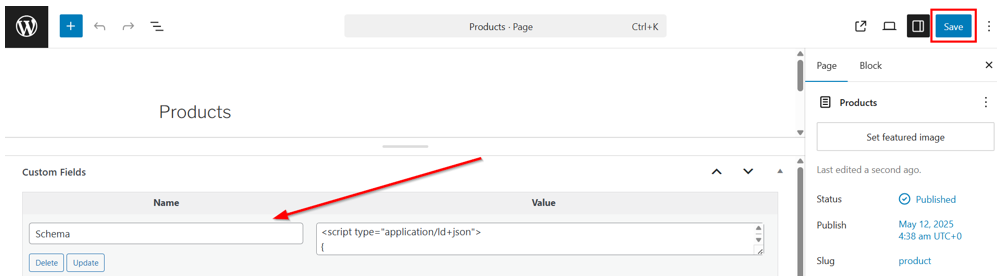
After that, ensure the Schema custom field is added. If so, click Save to save your post/page.
This code creates schema data for a local business, including its name, address, and phone number. You can adjust the data to match your specific content type, such as recipes, products, or events.
TIP: If you’re unsure about writing markup on your own, you can use Google’s Structured Data Helper to generate the code for you.
Next, ensure that the schema data is included in the page’s metadata. To do this, you must modify the header.php file. Here’s how:
Go to Appearance → Theme File Editor and open header.php. Alternatively, use an FTP client (e.g., FileZilla) to connect to the website’s server and access theme files.
Once you open the header.php file, locate the closing </head> tag, and insert the following PHP code:
<?php
$schemamarkup = get_post_meta(get_the_ID(), 'Schema', true);
if (!empty($schemamarkup)) {
echo $schemamarkup;
}
?>
Then, click Update File to save the changes to the header.php file.

This code checks for the schema data in the custom field and outputs it in the page header. This way, the schema is loaded along with the page metadata.
After adding the schema, it’s essential to verify that it’s working correctly. Again, go to Google’s Rich Results Test Tool, which we use to validate schema markup while using plugins.
Enter the page URL and click TEST URL.
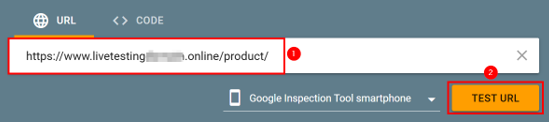
Review the results to ensure the schema is detected and correctly formatted. If there are errors, return to adjust the schema data or PHP code.

Best Practices & Tips to Add Schema Markup in WordPress
Adding schema markup can make your content stand out in search results, but it’s important to do it correctly. Follow these best practices to ensure your schema markup is effective and error-free.
Ensure Schema Markup is Accurate & Relevant
Schema markup should always match the content on the page. If you’re using Review schema, ensure the page contains a review. If you’re adding Recipe schema, the page must include a complete recipe with ingredients and cooking instructions.
And, if you’re marking up a blog post as an Article, include essential details like the author’s name, publication date, and a brief description. This allows search engines to understand the content and display accurate data in rich snippets.
Avoid Duplicate or Conflicting Schema Entries
Adding multiple schema types to the same page can cause conflicts, especially if they provide conflicting information. Ensure you check for an existing scheme and don’t overlap markup.
For example, if your theme already includes Article schema, avoid adding another Article schema. Instead, modify the existing schema to include any missing properties.
Remember, conflicting schema entries can confuse search engines and prevent your content from appearing as a rich snippet.
Regularly Test & Validate Schema Markup
Schema guidelines can change over time, so testing your schema regularly using Google’s Structured Data Testing Tool, should be diarized to be done annually.
Additionally, pay attention to errors, such as missing required fields or incorrect data types. Fixing these issues ensures your schema is properly structured and ready to display in search results.
For example, if you add Review schema to a product page but forget to include a rating, the testing tool will flag it as a missing property. Here, correcting these issues improves the chances of your content appearing as a rich snippet.
Stay Updated with Schema.org Standards & Search Engine Guidelines
Schema.org regularly updates its structured data guidelines, adding new schema types and refining existing ones.

Here’s what you need to do:
Monitor Updates: Visit Schema.org to stay informed about new schema types and properties.
Follow Google’s Guidelines: Google has its own set of rules for structured data, including what types of schema it supports and how it displays rich snippets. Check Google’s Search Central for the latest guidelines.
Remember, keeping up with schema standards ensures your content remains eligible for rich snippets, helping you maintain visibility in search results.
![Strip Banner Text - Get WordPress Hosting that supports SEO-friendly features. [More Info] title= Get WordPress Hosting that supports SEO-friendly features](https://www.hosted.com/articles/wp-content/uploads/2025/05/schema-markup-in-wordpress-2-1024x229.webp)
FAQS
What is schema markup, and why is it important for WordPress sites?
Schema markup (a type of structured data) helps search engines understand your website’s content and display it as rich snippets in SERPs. It provides additional context, such as star ratings, product prices, and event dates, making your content more appealing and informative. For WordPress sites, implementing schema can improve visibility, increase click-through rates, and help your pages stand out in search results, ultimately driving more traffic.
Is it better to use a plugin or manual JSON-LD for adding schema to WordPress?
Both methods work, but the choice depends on your skill level and requirements. Plugins are user-friendly and allow you to add schema without coding. However, if you need more control and customization, manually adding the JSON-LD code is a better option. It lets you specify custom schema types and fine-tune each property, making it ideal for advanced implementations.
What is JSON-LD, and how does it work for schema markup?
JSON-LD is a method for adding structured data to a webpage using JavaScript. It’s recommended by Google, as it separates schema data from the main content. This makes it easier to read, write, and debug. JSON-LD uses a script tag to insert structured data, allowing you to define content properties like product price, author name, or review ratings without altering the page’s visible content.
Can I add schema markup to custom post types in WordPress?
Yes, you can add schema markup to custom post types in WordPress using plugins or manual methods. Plugins like Schema Pro and WP SEO Structured Data Schema allow you to assign schema types to specific custom post types, such as products, events, or portfolios. Alternatively, you can manually add JSON-LD code to custom post templates.
Can I use multiple schema plugins on my WordPress site?
It’s not recommended to use multiple schema plugins simultaneously. Doing so can lead to duplicate schema markup, which causes conflicts and confuses search engines. Instead, choose one comprehensive plugin that supports multiple schema types. If you need additional schema types, consider adding them manually using JSON-LD rather than installing several plugins, ensuring consistency and avoiding potential errors.
Other Related Tutorials
– How To Disable Comments On WordPress: A Step-By-Step Guide
– WordPress Debug Mode: How to Enable It & Fix Errors
– xmlrpc.php In WordPress: What It Is And Why Disable It
– How To Use The wp_insert_post Function In WordPress
– How To Use WordPress Tags Effectively And Their Purpose
- About the Author
- Latest Posts

Rhett isn’t just a writer at Hosted.com – he’s our resident WordPress content guru. With over 6 years of experience as a content writer, with a background in copywriting, journalism, research, and SEO, and a passion for websites.
Rhett authors informative blogs, articles, and Knowledgebase guides that simplify the complexities of WordPress, website builders, domains, and cPanel hosting. Rhett’s clear explanations and practical tips provide valuable resources for anyone wanting to own and build a website. Just don’t ask him about coding before he’s had coffee.