 Contact Support
 Sign In


Most WordPress users don’t give their database a second thought until something breaks. However, every post, page, comment, user account, and setting on your site is stored in a MySQL database that WordPress depends on. If that database runs into trouble, your entire site goes with it.
This guide explains WordPress database management in plain, simple terms. You learn what a WordPress database is, what MySQL does, where your content lives, and how to safely access, back up, secure, and optimize your database.
KEY TAKEAWAYS
- WordPress databases store your site’s content, users, comments, settings, and plugin data.
- MySQL is the database management system WordPress uses to organize and retrieve that data.
- Database management directly affects your site’s performance, security, and ability to recover from problems.
- Never edit your database directly without first creating a backup.
- Tools like cPanel, phpMyAdmin, plugins, and hosting portals make WordPress database management safer and more accessible.
- Reliable WordPress hosting supports database performance, backups, and security out of the box.
TABLE OF CONTENTS
Quick Answer: What Is a WordPress Database?
A WordPress database is where your site stores everything it needs to work. That includes your blog posts, web pages, users, comments, plugin settings, theme settings, and site options.
WordPress uses MySQL or a compatible database to store and retrieve all this data whenever someone visits your site. Since your entire site depends on this data, regular website backups, proper security, and basic optimization are crucial for keeping things fast, stable, and recoverable.
What Is a WordPress Database?
WordPress isn’t a collection of static HTML files that sit on a server and display the same thing every time. It’s a dynamic system, which means it builds each page using content and settings stored in a central location. That location is the database.
Don’t confuse WordPress website files with the database; these are two separate items:
- Your website files, including WordPress core, themes, plugins, and media uploads, make up the structure of your site.
- The database is more like an organized filing cabinet inside that structure. It holds every piece of content and every configuration your site relies on to function.
Every time a visitor opens a page, WordPress connects to the database, pulls the relevant content, and displays it through your active theme. This process repeats on every page load, which is exactly why database health directly impacts how your site performs.
What Is MySQL in WordPress?
MySQL is a database management system, not a WordPress plugin. It’s the software that organizes your site’s data into tables, rows, and columns, so that WordPress can store, find, and retrieve information quickly.
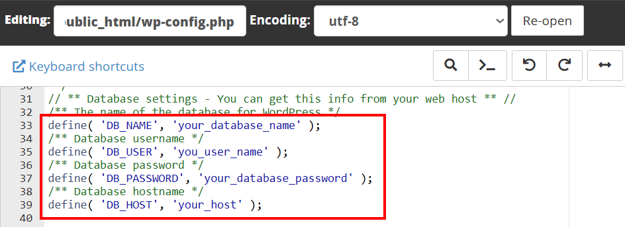
WordPress connects to MySQL using credentials stored in a file named wp-config.php, located in the root directory of your WordPress installation. This file contains your database name, username, password, and host, and WordPress reads it every time your site loads to establish that connection.
Most WordPress hosting providers include MySQL or a compatible database system as part of the hosting plan, so you typically don’t need to install it yourself. To interact with that database, WordPress uses PHP, the programming language behind WordPress which handles how your site stores and retrieves content.
What Information Does WordPress Store in the Database?
Your WordPress database stores more than just blog posts. It stores almost all the dynamic information your site needs to function. So, knowing what’s in the database helps you understand what you’re protecting when you create backups, making troubleshooting a lot easier when something breaks.
For example, if your site’s menu suddenly disappears after a plugin update, knowing that menus are stored in the database tells you where to start looking. The table below provides a clear breakdown of what is found in a typical WordPress database:
| Data Type | What It Includes |
| Posts and Pages | Blog posts, service pages, drafts, revisions |
| Users | Usernames, roles, permissions, profile details |
| Comments | Comment content, status, author info |
| Site settings | Site title, URL, permalink structure, reading settings |
| Plugin settings | Configuration data added by installed plugins |
| Theme settings | Customizer settings, menus, widgets, template options |
| Metadata | Categories, tags, custom fields, featured images |
| eCommerce data | Products, orders, customer details (plugin-dependent) |
How WordPress Database Works with Hosting
Your WordPress database doesn’t run on its own; it depends on the server environment your WordPress hosting provider sets up for you. Here, the quality of that hosting directly affects:
- How much database storage you get.
- How backups are handled.
- What tools you can access.
- How reliably your database stays online.
This also affects what your visitors experience. Page speed and admin dashboard responsiveness both depend on how efficiently the host processes database requests. If the server is slow, every query to the database takes longer, and that delay adds up fast.
Many hosts that offer cPanel web hosting include built-in database tools, making it easier to create, manage, and monitor your databases without needing command-line access.
WordPress Database Tables: Basic Structure Explained
WordPress doesn’t dump all its data into a single table. Instead, it splits everything across multiple tables, with each handling a specific job.
Now, what is a table? If you’ve ever worked with a spreadsheet, you already know the concept. A database table works the same way, with rows and columns. Each row is a single record (like one blog post), and each column holds a specific piece of information about that record (like the title, content, or publish date).
By default, these WordPress database table names start with the wp_ prefix, though some hosts or security setups may use a different prefix. A fresh WordPress install includes several core tables.
For example:
- The wp_posts table holds posts, pages, and custom post types.
- wp_users stores user account information.
- Comments go into wp_comments.
- Site-wide settings live in wp_options.
- There’s also wp_postmeta, which stores additional data attached to individual posts.
- For categories and tags, WordPress uses three connected tables: wp_terms, wp_term_taxonomy, and wp_term_relationships.
Why WordPress Database Management Matters
A WordPress database that is left unmanaged doesn’t just sit there quietly. Over time, it starts causing real issues, from slower page loads and security vulnerabilities to complete data loss in the worst cases. Here’s why it’s worth paying attention to:
Website Performance
Every time someone visits your site, WordPress runs queries against the database to load the correct content. The more cluttered the database, the longer those queries take.
For example, excess post revisions, spam comments, expired transients, and leftover data from deleted plugins pile up over time. None of that data is serving your site anymore, but WordPress still needs to sort through it, which slows down your front end and your admin dashboard.
Website Security
Your database contains some of the most sensitive information on your site, including user credentials, email addresses, and admin-level settings. If someone gains unauthorized access to it, they can change passwords, inject malicious content, or steal user data.
To reduce the risk of that happening, use strong database passwords, limit user permissions to only what’s necessary, and regularly update WordPress core, themes, and plugins.
To help you, we’ve covered these solutions in separate tutorials that you can find below:
- How to Password Protect a WordPress Site – The Ultimate Guide.
- How to Update WordPress: 5 Easy Ways.
- How to Update WordPress Theme: 5 Effective Methods.
- How to Update WordPress Plugins: A Step-by-Step Guide.
- How to Set User Permissions.
Backups & Recovery
Without a recent backup, a single failed update, a hack, or even an accidental deletion can wipe out your content and settings with no way to retrieve them.
However, a database backup provides a restore point, so you can return your site to a working state rather than rebuilding it from scratch. The more regularly you back up, the less data you stand to lose if something goes wrong.
Site Stability
A corrupted database table, a failed core update, or broken plugin data can take your entire site offline without warning. In some cases, you may see a white screen or an error message instead of your homepage.
To avoid all of these, keeping your database maintained and regularly backed up is important for easily identifying what went wrong and restoring things before downtime starts costing you visitors or sales.
Growth & Scalability
As your site grows with more content, users, and traffic, the database grows along with it. What works well for a small blog can start struggling under the weight of thousands of posts, comments, and plugin entries.
At that point, tighter database maintenance and stronger hosting resources become a necessity, not an option. If you’re planning to scale, it’s worth reviewing your WordPress hosting requirements to ensure your setup can handle the load.
How to Access a WordPress Database Safely
Before you go anywhere near your database, there’s one rule you should always follow: first create a backup. Don’t edit the database directly unless you’re confident about what you’re changing, because one wrong move can break your site.
With that in mind, here are the five main ways to access and manage your WordPress database, starting with the safest option:
WordPress Admin Dashboard
For most users, the WordPress admin dashboard is the safest way to manage your site’s data. It allows you to create and edit posts, manage users, moderate comments, set up menus, and adjust settings, all without ever directly touching the database. WordPress handles the database operations in the background, so there’s very little risk of breaking anything through the dashboard.
cPanel
If your host provides cPanel hosting, you will have access to database management tools directly from the control panel. Through cPanel, you can create new databases, assign database users, generate backups, and open the phpMyAdmin WordPress database when you need more direct access.
It’s a step up from the WordPress dashboard in terms of control, but still manageable for most users who wish to handle basic database tasks without command-line tools.
phpMyAdmin
This provides direct access to your MySQL database through a web-based interface. You can view tables, edit individual rows, run SQL queries, and export or import data.
It’s a powerful tool for advanced tasks, but that power comes with risk. One wrong edit to a critical table can break your site instantly, and there’s no undo button. So, ensure you always back up your database before making any changes through phpMyAdmin.
Database Management Plugins
If you’d rather not work with phpMyAdmin directly, there are several WordPress plugins that can handle common database tasks for you. These include running backups, optimizing tables, performing search-and-replace operations, and cleaning up old data.
However, be selective about what you install. Choose well-maintained plugins that have strong reviews and a solid update history, since a poorly coded database plugin can cause more problems than it solves.
Hosting Provider’s Client Portal
Some hosting providers offer database access, backup tools, and support options directly through their client portal. Depending on your host, you may be able to download database backups, monitor resource usage, or contact support for assistance with database-related issues without logging into cPanel or phpMyAdmin at all.
If you’re unsure which option is right for you, start with the WordPress dashboard for everyday tasks. Move to cPanel or your host’s portal when you need more control and save phpMyAdmin for situations where direct database access is genuinely necessary.
Before You Edit a WordPress Database: Safety Checklist
If you’re about to make direct changes to your database, first run through this checklist:
- Back up your full website, then back up the database separately as an extra layer of protection.
- Confirm you’re working in the correct database, especially if your hosting account runs multiple sites.
- Avoid editing live data unless you’re confident in what you’re changing and check that your database user has the correct permissions.
- Document every change before you make it and test the site after each edit.
- Don’t hesitate to contact hosting support or a developer if you are uncertain about anything.
WordPress Database Backups
A database backup captures all the content and settings stored in your WordPress database at a specific point in time. But a database-only backup isn’t always enough; you need a full website backup that includes both your files and your database, so you can restore everything together if necessary.
You should always run a backup before performing updates, migrating to your site to a new host, changing plugins, or making manual database edits. For ongoing protection, setting up automatic backups through your WordPress hosting provider or a plugin is the easiest approach.
Alot of people overlook testing whether their backups can be restored. Consistently creating backups is only half the job if you haven’t confirmed they work when you need them.
WordPress Database Optimization Basics
Over time, every WordPress database accumulates data it no longer needs. In this case, cleaning out that clutter and keeping things running efficiently is important. Here’s where to start:
Remove Unnecessary Data
The easiest way to reduce database bloat is to remove data that is no longer serving your site.
For example:
- Spam comments, trashed posts, and old post revisions are common offenders that build up quietly in the background.
- Expired transients, which are temporary data entries that WordPress and plugins create for caching purposes, also tend to pile up once they are no longer valid.
- Some deactivated plugins leave behind entire database tables even after you remove them.
You can clean these up manually through phpMyAdmin or use a reputable optimization plugin. However, always back up your database first in case you accidentally remove something you may still need.
Optimize Database Tables
As data is added, edited, and deleted over time, database tables can become fragmented. This means the data inside them isn’t stored as efficiently as it could be, which can slow down queries.
In this case, running an optimization on these tables reorganizes that data and reclaims wasted space. You can do this through phpMyAdmin by selecting your tables and choosing the Optimize table option, or through your hosting dashboard if it offers database tools.
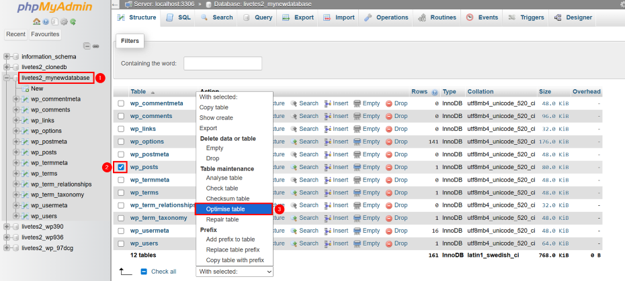
You can also use database optimization plugins (e.g., WP-Optimize and Advanced Database Cleaner), which can handle this for you. Just don’t run optimization on a live, high-traffic site without testing first, and always have a backup ready.
Review Plugins & Themes
Not all plugins are built the same way. Some run heavy database queries on every page load, which adds up fast on a busy site. Others store large amounts of data in custom tables that continue to grow over time.
If you’re not actively using a plugin or theme, deactivate and delete it. Keeping it installed still leaves its data in your database and, in some cases, keeps its queries still running. So, make it a habit to audit your plugins and themes regularly, keep the ones you use updated and remove anything that’s no longer required.
Use Caching
Every time a visitor loads a page, WordPress queries the database to collect the correct content. On a busy site, the same queries run repeatedly for every visitor. Caching cuts that time by storing the results so WordPress can serve them without hitting the database each time.
Page caching takes this even further by saving a fully built version of each page and serving it directly on repeat visits. Object caching works at a smaller scale, keeping frequently requested data in memory so it loads faster. Together, they take a lot of pressure off your database, and the difference becomes more noticeable as your traffic grows.
Monitor Database Performance
If your site starts slowing down and you’ve already cleaned up unnecessary data, the issue may be deeper. For instance, slow database queries, server resource limits, or a database that’s just grown too large can all drag performance down.
Some hosting dashboards show database size and resource usage, which can help you spot problems early. However, diagnosing slow queries or tuning MySQL settings is beyond what most site owners need to do themselves. If you’re running into performance issues at that level, it’s best to reach out to your hosting provider’s support team or a developer to dig into the specifics.
WordPress Database Security Best Practices
Here are the tried-and-tested best practices to secure your WordPress database:
- Use strong, unique passwords for your database users, and limit their permissions to only what’s necessary.
- Keep WordPress core, themes, and plugins updated so known vulnerabilities are patched before they are exploited.
- Only install reputable plugins from trusted sources.
- Your wp-config.php file contains your database credentials, so ensure it isn’t publicly accessible. Moving it one directory above your WordPress root or restricting access through your server configuration are two common ways to protect it.
- Enable an SSL certificate to encrypt data submitted through your site and choose a secure hosting environment that takes server-level security seriously.
- Back up your database regularly, and if your host or a plugin offers security monitoring, it’s worth turning on so you can catch suspicious activity early.
Common WordPress Database Problems
Even a well-maintained WordPress site can run into database issues from time to time. Knowing what the most common problems look like makes it easier to respond quickly instead of guessing what went wrong.
Error Establishing a Database Connection
This is one of the most common WordPress errors, and it means WordPress can’t connect to its database. The cause is usually incorrect credentials in your wp-config.php file, which can occur after a hosting migration or a password change.
It can also happen when the database server is temporarily unavailable, when core WordPress files are corrupted, or when your hosting account has hit a resource limit. If you see this error, start by checking your wp-config.php credentials and contacting your host if everything looks correct on your end.
We’ve written a detailed tutorial on how to fix this error that you can read at the following link:
Fix an Error Establishing a Database Connection In WordPress.
Slow WordPress Admin Dashboard
If your admin dashboard takes a long time to load or feels sluggish when you’re editing posts or navigating settings, the database is often part of the problem.
A bloated database with too much accumulated data, plugins that run heavy queries on every admin page load, limited hosting resources, or unoptimized queries can all contribute.
The fix usually involves a combination of cleaning up the database, disabling or replacing resource-intensive plugins, and ensuring your hosting plan provides enough memory and processing power for your site’s requirements.
Corrupted Database Tables
Database tables can become corrupted after a server crash, a failed WordPress or plugin update, or unexpected hosting issues. When this occurs, you may notice missing content, broken pages, or errors when loading parts of your site.
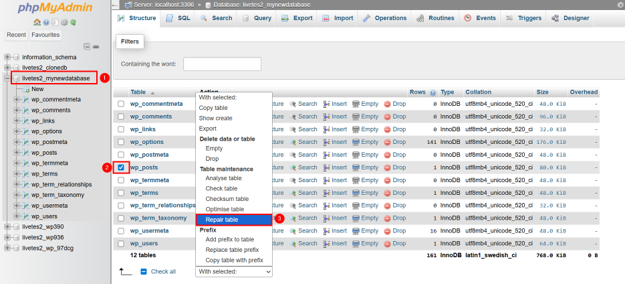
If you have a recent backup, restoring it is usually the fastest fix. You can also try repairing tables through phpMyAdmin or by adding define(‘WP_ALLOW_REPAIR’, true); to your wp-config.php file, which gives you access to WordPress’s built-in database repair tool. Just remember to remove that line once the repair has been done.
Plugin Conflicts or Leftover Data
When you deactivate and delete a plugin, you’d expect it to clean up after itself. However, many plugins don’t; they leave behind custom tables, settings, and stored data in your database even after they’re fully removed.
Over time, this leftover data can lead to conflicts with new plugins or unexpected behavior on your site. If you suspect a removed plugin is still causing issues, you can check for its tables in phpMyAdmin.
Do be careful when deleting anything manually, and ensure you have a backup before removing any tables you’re not 100% certain about.
Large Database Size
A WordPress database that started small can grow significantly over time without you realizing it. Post revisions, activity logs, ecommerce orders, analytics data from tracking plugins, and even some backup plugins that store data inside the database all contribute to this growth.
A large database isn’t always a problem on its own, but once it starts affecting query speeds, or pushing against your hosting account’s storage limits, it’s time to review what’s taking up space and clear out what you no longer need.
How Hosted.com® Supports WordPress Database Management
WordPress relies on its database every time your site loads. This is where reliable hosting helps keep that database accessible, secure, backed up, and performing properly.
Hosted.com® WordPress hosting is designed with this in mind. You have cPanel access with database management tools, including phpMyAdmin, backup support, SSL security features, and performance-oriented infrastructure. If you ever need assistance with a database issue or are unsure how to handle something safely, the support team is there to assist.
![Strip Banner Text - Get WordPress Hosting built for database performance and security. [Get Started]](/articles/wp-content/uploads/2026/08/wordpress-database-04.webp "Hosted® WordPress - Get WordPress Hosting built for database performance and security. [Get Started]")
How to Write and Publish Your First WordPress Blog Post
VIDEO: How to Write and Publish Your First WordPress Blog Post
FAQS
What is a WordPress database?
A WordPress database is where your site stores all its dynamic content and settings. This includes posts, pages, users, comments, plugin configurations, theme settings, and site options. Without it, WordPress wouldn’t be able to load or display any of your content.
What is a WordPress MySQL database?
MySQL is the database management system that WordPress uses to store, organize, and retrieve site data. It structures everything into tables, and WordPress communicates with it using PHP. Most hosting providers include MySQL as part of their WordPress hosting package.
Does WordPress need a database?
Yes. WordPress is a dynamic content management system, which means it can’t function without a database. Every time a page loads, WordPress queries the database to retrieve the correct content and settings. No database means no working site.
Where is the WordPress database stored?
Your WordPress database is stored on the server provided by your hosting company. The database itself is managed by MySQL, and WordPress connects to it using credentials saved in the wp-config.php file situated in your site’s root directory.
How do I access my WordPress database?
The most common way is through phpMyAdmin, which most hosting providers include in their cPanel dashboard. You can use phpMyAdmin to browse your WordPress database tables, run queries, and export data. For everyday content management, the WordPress admin dashboard is the safer option.
Is it safe to edit a WordPress database?
It can be, but only if you know what you’re changing, and you’ve created a full backup first. One wrong edit in a critical table can break your entire site. If you’re not confident, use the WordPress dashboard for content changes or ask your hosting provider for help.
How do I back up a WordPress database?
You can back up your WordPress database through phpMyAdmin by selecting your database and using the Export function. Many hosting providers also offer backup tools through cPanel or their client portal. Backup plugins are another option; they can automate the process on a schedule.
How do I optimize a WordPress database?
Start by removing data you no longer need, such as spam comments, trashed posts, old revisions, and expired transients. You can optimize tables via phpMyAdmin or a WordPress database optimization plugin. Regular cleanups and caching also help keep your database running efficiently.
What causes “Error establishing a database connection”?
This error usually means WordPress can’t connect to its MySQL database. The most common causes are incorrect credentials in your wp-config.php file, an unavailable database server, corrupted WordPress files, or your hosting account hitting a resource limit. Check your wp-config.php settings first, then contact your host if the issue persists.
How many databases does one WordPress site need?
A single WordPress site typically needs just one database, which contains all the tables WordPress uses to store your content, settings, and user data. However, if you’re running multiple WordPress installations on the same hosting account, each should have its own separate database to avoid conflicts and keep things organized.
Other Blogs of Interest
– What Is WordPress Hosting – Features, Benefits And How It Works
– 10 Top Free WordPress Themes for your Website
– WordPress vs Shopify – Comparing Two Ecommerce Giants
– How To Launch A WordPress Site
– Gutenberg WordPress Editor – Features, Blocks And How It Works
- About the Author
- Latest Posts

Rhett isn’t just a writer at Hosted.com – he’s our resident WordPress content guru. With over 6 years of experience as a content writer, with a background in copywriting, journalism, research, and SEO, and a passion for websites.
Rhett authors informative blogs, articles, and Knowledgebase guides that simplify the complexities of WordPress, website builders, domains, and cPanel hosting. Rhett’s clear explanations and practical tips provide valuable resources for anyone wanting to own and build a website. Just don’t ask him about coding before he’s had coffee.