 Contact Support
 Sign In


Custom fonts are a great way to make your WordPress website look unique and reflect your brand’s personality. The right font can help your site stand out, whether your brand is playful, professional, or modern. Fonts are not just about how your site looks; they also play a crucial role in how people interact with it.
When visitors visit your WordPress website, clear and readable typography improves their experience. A good font guides their eyes, helping them find what they need. This keeps them engaged and makes them more likely to trust your brand and explore your content further.
Luckily, adding WordPress custom fonts to your site isn’t complicated. You can use plugins or upload fonts manually. Each method works well in different situations, and we’ll show you how to use them step by step to enhance your website’s design and user experience.
KEY TAKEAWAYS
- WordPress custom fonts can make your website stand out and match your brand’s style.
- You can add custom fonts using plugins, uploading them to your theme, or both.
- Plugins like Easy Google Fonts and Custom Fonts are great for beginners and save time.
- Adding custom fonts in WordPress manually gives you more control and flexibility over your WordPress site’s design.
- Use tools like the Web Font Generator to convert fonts into web-friendly formats for better compatibility.
- Adding custom fonts manually requires uploading files to your theme and then using CSS to apply the files.
- Always test your fonts on different browsers to ensure they look consistent for all visitors.
- Choose lightweight plugins or optimize font files to maintain your site’s speed and performance.
TABLE OF CONTENTS
Where to Find Custom Fonts
Adding custom fonts to your WordPress site starts with finding the right font. There are many reliable sources where you can explore free and premium font options to match your website’s style.
One of the best places to start is Google Fonts. As of January 18, 2025, it offers 1790 free font families that are simple to use and integrate into your WordPress site. Whether you want a bold, modern look or a clean, minimal style, Google Fonts has something for everyone.

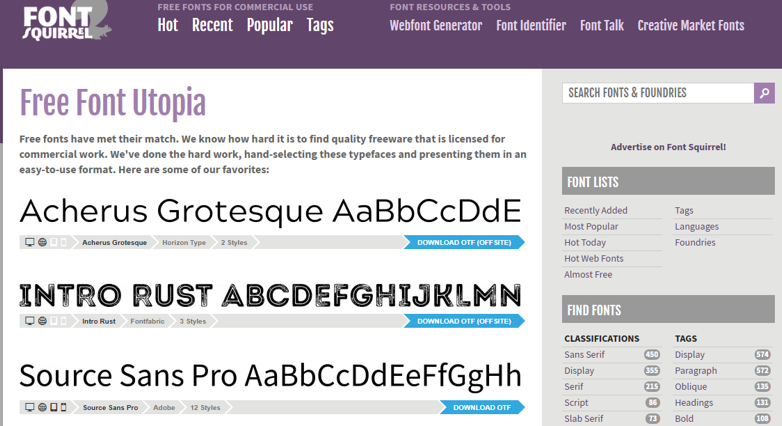
If you’re looking for fonts licensed for commercial use, check out Font Squirrel. It provides high-quality fonts to use safely for business or personal projects without worrying about copyright issues.
For premium options, Adobe Fonts is a great choice. It offers more than 30,000 stylish, unique fonts through Adobe Creative Cloud. These fonts are perfect for making your WordPress website stand out.

Envato Elements is another excellent platform for premium fonts. It features a variety of fonts that work well for creative and professional projects. At the time of writing this tutorial, they provide 58,986 fonts.

Lastly, websites like Fonts.com, DaFont, and 1001 Free Fonts are great for exploring even more options. These platforms offer free and paid fonts, giving you plenty of choices to find the perfect fit for your site.
With so many resources available, finding the right font to improve your WordPress website’s design is easier than ever.
Select Right Custom Font
Choosing the right WordPress custom font for your site is essential for creating a design that resonates with your target audience and supports your brand identity. The font you choose impacts how visitors perceive your WordPress site and their overall experience.
To start, think about your website’s purpose and target audience. For instance, a blog website may benefit from easy-to-read serif or sans-serif fonts, while a creative portfolio might call for more artistic or decorative options. Understanding your niche and audience helps narrow down the right font styles.
Readability should always be a top priority. Avoid overly decorative or complex fonts that make text hard to read. Instead, choose WordPress custom fonts with clear letters, proper spacing, and balanced proportions. It’s also essential to test how the font looks in different sizes, especially on mobile devices, to ensure it remains user-friendly across all platforms.
The font you select should suit your brand’s personality. If your brand is formal and elegant, serif fonts like Times New Roman or Playfair Display work well. For a modern, minimalistic look, sans-serif fonts like Roboto or Open Sans are great options.
Playful and creative brands can opt for unique handwritten fonts like Pacifico. Matching the font style to your brand makes your WordPress website feel cohesive and professional.
Using web-safe fonts is another important consideration. These fonts are optimized for the web, ensuring they load quickly and display correctly on different browsers and devices. Popular formats like WOFF or WOFF2 are ideal for performance, while TTF and OTF are widely supported but slightly larger. If a font isn’t web-safe, it may appear incorrectly or fail to load for some users.
Font pairing is also key to a visually appealing website. Limit yourself to 2 to 3 fonts to maintain a clean and cohesive design. For example, use a bold and eye-catching font for WordPress headers, a simple and readable font for body text, and an optional accent font for highlights or call-to-action. Tools like Google Fonts Pairing:

and Fontjoy can help you find harmonious combinations.

Before using a font, check its licensing terms. Some fonts are free for personal and commercial use, while others require a paid license. Free font libraries like Google Fonts, DaFont, and Font Squirrel are excellent resources, while Adobe Fonts and Envato Elements offer high-quality paid options.
Finally, test the fonts on your WordPress website to see how they align with your design, colors, and layout. Additionally, optimize font performance by only loading the weights and styles you need and compressing font files to reduce loading times.
This way, you can choose the right WordPress custom font that balances style, functionality, and performance. By considering your brand identity, audience, and website purpose, you can select fonts that enhance your site’s design while ensuring a smooth and enjoyable visitor experience.
Convert Fonts to a Web-Friendly Format
When adding custom fonts to your website, it’s important to ensure they are web-friendly. Web-friendly fonts ensure your WordPress site maintains consistent across all browsers and devices.
If they are incompatible, some font formats may not display correctly; this could disrupt your website’s design and user experience. To avoid this, converting unsupported fonts into widely supported formats ensures a smooth and professional look for all visitors.
Overview of Font Formats
There are different types of font formats, each with unique features. Here’s a quick guide:
- OpenType Fonts (OTF): OpenType fonts are popular because they work with most major browsers. Created by Microsoft, they are reliable for web use.
- TrueType Fonts (TTF): TrueType fonts were developed by Microsoft and Apple in the 1980s. They’re commonly used on both Windows and macOS.
- Web Open Font Format (WOFF): This is made specifically for the web and is recommended by the World Wide Web Consortium (W3C).
- WOFF 2.0: An updated version of WOFF, offering better compression. It works well on Google Chrome, Firefox, and Opera, but isn’t supported on Safari or Internet Explorer.
- Embedded OpenType Fonts (EOT): These fonts are a compact version of OTF and are supported by all major browsers.
Before using WordPress custom fonts, check their compatibility with different browsers. You can use online tools to test fonts and convert them into universal formats. This step ensures your WordPress website maintains a constant appearance for all visitors.
Steps to Convert Fonts via Web Font Generator
To convert fonts to web-friendly formats, visit the Web Font Generator website. Upload your font file by clicking UPLOAD FONTS and selecting the file from your computer.
Next, choose the conversion type (BASIC, OPTIMAL, OR EXPERT). After that, confirm your font is eligible for web use by agreeing to the legal terms. Once done, click DOWNLOAD YOUR KIT to save a .zip file containing your converted fonts.

The downloaded kit includes everything you need to use the font on your site. It provides the font in WOFF and WOFF 2.0 formats, which are widely supported for web use. You’ll also find a pre-written CSS file that simplifies adding the font to your site’s design. A demo HTML page is also included, allowing you to test how the font looks before integrating it into your website.

Remember, if you convert multiple fonts, you’ll have the files for each:
- HTML demo pages
- WOFF format
- WOFF 2.0 format.
Here’s an example where we converted 2 fonts (Roboto Italic and Roboto Regular):

Organize and manage your website files with our intuitive web-based File Manager included in Hosted®’s comprehensive WordPress Hosting plans.
Access, edit, and secure your data with ease—no additional tools required!
How to Add Custom Fonts to WordPress?
There are two ways to upload font to WordPress:
- Using a Plugin
- Manually Uploading WordPress Custom Fonts.
Use a WordPress Plugin
One of the most straightforward ways to add custom fonts to your WordPress site is using a plugin. Plugins simplify complex tasks, and several plugins are designed specifically for adding fonts. Popular options include:
- Easy Google Fonts
- Use Any Font
- Custom Fonts
These plugins simplify integrating and using custom fonts without coding knowledge.
To get started, you’ll need to install and activate the plugin of your choice. For example, if you want to use the Use Any Font plugin, head to your WordPress dashboard, click Plugins, then Add New Plugin, and search for the plugin. Once you see it, click Install Now and then Activate.

After activating the plugin, click Use Any Font in your WordPress dashboard. You’ll see a field for the API key. Click Generate Free Lite / Test API Key. You can also get the premium key (if you wish). This key is required to add WordPress custom fonts.

Then, click Verify to complete.

Next, switch to Upload Font. Click Upload Fonts. Type a name for your font (e.g., My Custom Font) in the text field. Click Choose File to upload your font file. The plugin supports formats like TTF, OTF, EOT, WOFF, and WOFF. Then, click Upload to add the font to your WordPress website.

After uploading your font, you’ll be given a class to use this font; in our example, it is my-custom-font. You’ll use it in the next step to assign WordPress custom fonts.

Now, go to Assign Font and click Assign Font.

Select the font you uploaded from the dropdown menu. Assign the font to specific elements of your website, such as:
- Headings (e.g., H1, H2, H3)
- Paragraphs
- WordPress Widget Title
- Posts Title Only
- Pages Title Only
- Category Title Only
- Main Menu
- Posts, Pages, & Category Title
- Specific classes or IDs (if you’re familiar with CSS).
Finally, click Assign Font to apply the font to your WordPress site.

Now, visit your website to ensure the font displays correctly on the assigned elements. Check how the font looks across different devices and browsers to confirm compatibility.
TIP:
You can optimize font performance using necessary font weights (e.g., regular, bold) to avoid slowing down your site. Test the site’s loading speed after applying the custom font.
Upload Fonts to Your WordPress Theme
If you prefer more control over your website’s fonts, upload custom font files directly to your WordPress theme. This method requires more work but allows you to customize the typography on your WordPress site. Here’s how to do it:
The first step is to find and download the custom font files you want to use. You can choose fonts from the various platforms we discussed earlier. Ensure you download the files in web-friendly formats like .woff or .woff2 for better browser compatibility (we’ve already discussed how to transform to web-friendly WordPress custom fonts).
Once you have the font files, upload them to your WordPress theme. To access your theme files, use an FTP client (like FileZilla) or the Hosted® File Manager. For this tutorial example, we use File Manager; however, you can refer to the following guide if you wish to use FileZilla:
– How To Configure A WordPress Website In FileZilla
After accessing your theme files, navigate to the following directory:
/wp-content/themes/your-theme-folder/Inside your theme directory, create a folder called fonts if it doesn’t already exist, and upload your font files there. In our case, the fonts folder was already inside the assets folder, so we uploaded the font file there.

After uploading the font files, write some CSS code to include them on your site. Open your WordPress admin dashboard, go to Appearance → Customize → Additional CSS, and add the following code:
@font-face {
font-family: 'YourFontName';
src: url('path-to-your-font-file.woff2') format('woff2');
font-weight: normal;
}
Replace YourFontName with the name of your font and path-to-your-font-file.woff2 with the correct path to the file in your fonts folder. Remember, @font-face code loads the font each time someone visits your WordPress website. However, the font won’t be applied to any elements until you specify it in your CSS.
You can apply it to specific parts of your website using CSS selectors. For example:
.site-title {
font-family: "Schibsted Grotesk Regular", Arial, sans-serif;
}
This code sets the custom font for the WordPress site title. Lastly, click Publish to save the changes, and your site will now use the new font.

Here’s the sample output to notice how the site title’s font changes:

![Strip Banner Text - Manage your website and files with our all-in-one WordPress Hosting solutions. [Get started]](https://www.hosted.com/articles/wp-content/uploads/2025/02/wordpress-custom-fonts-2-1024x229.webp "Manage your website and files with our all-in-one WordPress Hosting solutions")
FAQS
Can I add multiple WordPress custom fonts to my website?
Yes, you can use multiple custom fonts on your website, but keep it balanced. Too many custom fonts can make your site look cluttered and slow its loading speed. It’s best to use no more than two or three complementary fonts, such as one for headings and another for body text.
Is it better to host fonts locally or to use external sources like Google Fonts?
Hosting fonts locally can improve website speed because the files load directly from your server. However, external sources like Google Fonts are easier and automatically optimized for performance. If you host fonts locally, use optimized formats like .woff2 to reduce load times.
Are custom fonts SEO-friendly?
Yes, WordPress custom fonts can be SEO-friendly if they don’t negatively affect your site’s loading speed. Search engines prioritize user experience, so using well-optimized fonts improves your site’s design and readability; this positively impacts SEO. But ensure your site remains fast and accessible.
Do I need to back up my site before adding WordPress custom fonts?
It’s a good idea to back up your site before making changes, especially if you manually upload fonts or edit CSS files. This confirms you can restore your site to its original state if anything goes wrong.
Can I remove WordPress custom fonts if I change my website’s design?
Yes, you can remove custom fonts at any time. If you’ve used a plugin, deactivate or delete it to remove the font. If you’ve manually added fonts, delete the font files and remove any related CSS rules from your theme files or customizer.
Other Related Tutorials
– How to Change Fonts in WordPress: 6 Easy Ways
– WooCommerce Shortcodes: A Guide to Their Uses & Benefits
– How To Configure WordPress Error Logs: Identify & Fix Issues
– How to Fix the WordPress 500 Internal Server Error
– WordPress Malware Removal: Manual & Automatic Methods
- About the Author
- Latest Posts

Rhett isn’t just a writer at Hosted.com – he’s our resident WordPress content guru. With over 6 years of experience as a content writer, with a background in copywriting, journalism, research, and SEO, and a passion for websites.
Rhett authors informative blogs, articles, and Knowledgebase guides that simplify the complexities of WordPress, website builders, domains, and cPanel hosting. Rhett’s clear explanations and practical tips provide valuable resources for anyone wanting to own and build a website. Just don’t ask him about coding before he’s had coffee.