


 Contact Support
 Sign In

If you manage a WordPress website, there may come a time when you need to export its theme. Perhaps you want to build a new website using the same design or share the theme file with others. While exporting a theme is usually easy, there are several ways to do it depending on your needs.
This tutorial explains when and why you should export WordPress theme. We’ll also walk you through 4 proven methods to complete the process successfully. Then, we’ll discuss the best practices, tips, and a checklist for exporting your WordPress theme.
KEY TAKEAWAYS
- Exporting a WordPress theme helps with backups, site moves and sharing designs.
- You can export WordPress theme manually, use UpdraftPlus, export customizer settings, or download it through File Manager or FTP.
- Always back up your site, disable extra plugins, and test the theme after importing.
- Check for missing settings or plugin dependencies to avoid problems after the export.
TABLE OF CONTENTS
When to Export WordPress Theme
There are many good reasons to export a WordPress theme because exporting can save you time, protect your work, and make it easier to manage WordPress websites.
One of the most important reasons is to backup WordPress theme. If you plan to edit your theme’s code or settings, it’s a good idea to export it first. So, if something goes wrong, you can easily restore the original version without starting from scratch.
Exporting a theme also helps when you use the same design on multiple websites. Instead of creating the same theme again, you can export it from one site and install it on others. This saves a lot of time and keeps the look of your sites consistent.
Sometimes, you first make changes on a staging site to test how they work. Once you are happy with the changes, you can export the updated theme and move it to your live site. This ensures everything works properly before showing it to visitors.
Exporting a theme is also useful when you move to a new domain or hosting provider. Instead of redesigning your site from the beginning, you can export the theme and upload it to the new location quickly.
Lastly, if you have created a custom theme, exporting it lets you share your work with others. By saving the theme as a .zip file, you can send it to friends, clients, or even sell it online. It’s a simple step that can make a big difference in managing your designs safely and easily.
How to Export a WordPress Theme
In this section, we’ll show you 4 ways to export theme in WordPress:
- Export Manually
- Export Using a Plugin
- Export via WordPress Theme Customizer
- Export Using Hosted’s File Manager.
Let’s start with the first method below.
Export WordPress Theme Manually
Export your WordPress theme manually if you want full control over the export process without using extra plugins. This method is simple and can be done from your WordPress Admin Dashboard. However, you must use a block theme, such as Twenty Twenty-Two, for this method to work. Here’s how:
Go to WordPress Dashboard → Appearance → Themes. You will see a list of all the themes installed on your site. Ensure the block theme you want to export is active. If it isn’t, hover over or click it and activate it first.
Then, click Customize under the active theme. This will open the WordPress Customizer.

In Customizer, click anywhere on your website. Doing so will open your website in the editor.

Now, look at the top right corner and click on the ⋮ menu. From the menu, navigate to TOOLS, and then click Export.

WordPress will automatically create a .zip file of your active theme. Save this file to your computer. This file contains everything needed to install the theme on another site.

IMPORTANT:
The WordPress Export tool (accessible by going to WordPress Dashboard → Tools → Export) can also export posts, pages, and media files. However, this method focuses solely on exporting the theme itself. So, always ensure you export the right part of your site based on what you need.
Export WordPress Theme Using Customizer Settings
Another easy way to export your WordPress theme settings is using the Customizer Export/Import plugin. This method helps you move design settings from one site to another without touching code.
It’s useful if you are working with a child theme, which automatically inherits files and code from its parent theme, but doesn’t copy the customized settings. When you export the customizer settings, you can quickly apply the same design options to a new child theme.
Remember, this method only exports the settings stored in your WordPress database. This includes colors, layout choices, and header media. It doesn’t export your site title, navigation menus, or widget placements.
Below are the steps to export your theme customizer settings:
Go to Plugins → Add Plugin. Type Customizer Export/Import in the Search Plugins box. Once the desired plugin appears, click Install Now and then Activate.

Next, head over to Appearance → Customize from your WordPress sidebar.

In the Customizer sidebar, scroll to the bottom and select Export/Import.

Under Export, click Export. WordPress will create a .dat file containing your customizer settings.

When the Save As window appears, navigate to where you want to store the file on your computer and click Save.

IMPORTANT:
WordPress doesn’t support importing .dat files by default. Install the Customizer Export/Import plugin on the new website to import.
Hosted®’s WordPress Hosting gives you a powerful foundation with high-speed performance, regular backups, and advanced protection against threats.
Backed by a team of experts and a platform built to scale, you’ll have everything you need to build and grow without limits.
Export Theme Using WordPress Backup Plugin
Use a backup plugin for a faster and safer way to export your WordPress theme. One of the most trusted plugins for this job is UpdraftPlus. It’s mainly used for creating full website backups, but also lets you back up and export only the theme.
To use this plugin, you first need to install and activate it just like you install any other WordPress plugin. After activation, go to UpdraftPlus Backups → Backup / Restore. Then, click Backup Now to start creating a backup.

In the pop-up window, click the ⋯ next to Include your files in the backup to see advanced options. From these options, keep Themes checked, and uncheck the others if you want to back up the theme without the database, plugins, or uploads. Then, click Backup Now again to create the backup based on your selections.

After that, scroll down to Existing backups on the same page. You will see a list of all the backups you have made. Find the theme backup you just created, click Themes, and then click Download to your computer to download this as a .zip file to your local computer.

Export WordPress Theme via the Hosted® File Manager
If you need the complete theme folder, including all PHP, CSS, JavaScript files, and images, use the File Manager. For this section, we’ll use the Hosted® File Manager. However, if you’re comfortable using an FTP client (e.g., FileZilla), you can use that to export WordPress theme.
Let’s continue with the File Manager:
Login to Hosted®’s cPanel and go to Files → File Manager.
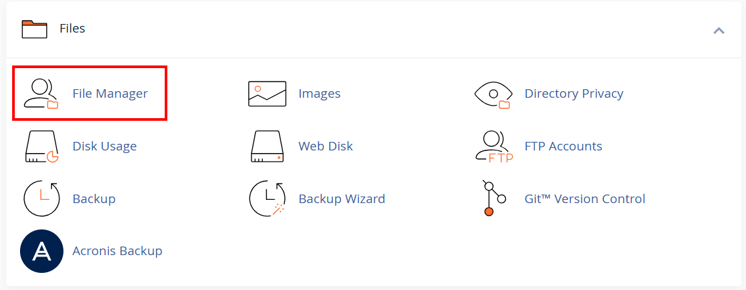
Navigate to the following directory:
public_html/wp-content/themesRight-click on your active theme and choose Compress.

Choose the compression type (in our example below, we selected Zip Archive), and click Compress Files.

Now, right-click on the compressed file and choose Download to export WordPress theme to your computer.

IMPORTANT:
If you want to export multiple themes, compress the themes directory (located in the wp-content folder) and download it.
Best Practices for Exporting WordPress Themes
Before you export WordPress theme, you must follow a few best practices. These simple steps can save you from problems later and ensure everything works smoothly when you move your theme to a new site.
- Create Backup: Always create a full backup of your current WordPress site before you export the theme. This backup should include your theme files and your website database. If anything goes wrong during export or import, you can easily restore your site without losing your design, content, or settings. Many hosting providers, including Hosted®, offer easy backup tools, or you can use backup plugins to create a safe copy.
- Disable Unnecessary Plugins: Before you export, deactivate any plugins you don’t need. Extra plugins can sometimes cause conflicts during export, leading to a messy or incomplete export file. Turning them off helps create a cleaner, lighter export and lowers the risk of errors when you upload the theme to a new site. Once the export is done, you can easily reactivate the plugins.
- Test Exported Theme: After you import the theme onto a new site, test it carefully. Check if all theme parts work properly, including layouts, colors, dropdown menus, and other settings. It’s important to catch small problems early, so your website looks and works as you want before visitors see it.
Following these best practices ensures your WordPress export theme process is safe, clean, and ready for success on any website you want to build or update.
Checklist to Export WordPress Themes
When you export WordPress theme, there are a few important things to consider to avoid problems after moving your theme to a new site. Some themes depend on certain plugins or special features to work properly. For example, your theme might use a plugin to create portfolios, testimonials, or special layouts.
When you export the theme, the design files will move, but the features from those plugins will not. If you forget to install the required plugins on the new site, you may find some sections missing or broken. So, it’s smart to list all the plugins your theme depends on before exporting, so you can quickly reinstall them later.
Another important thing to remember is that exporting the theme will not automatically bring over the settings you made inside the WordPress Customizer. Changes, such as your site’s colors, fonts, logo placement, and header images, are usually stored separately in the database, not inside the theme folder.
If you want to move these custom settings too, you will need to export them using a Customizer Export/Import plugin. Otherwise, after you import the theme to a new site, you must reapply those settings manually.
If you follow these points before exporting, your theme will look and work as expected after setting it up on a new WordPress website.
Tips for Troubleshooting a WordPress Theme Export
Sometimes, exporting a WordPress theme doesn’t go exactly as planned. You may face small problems that can stop your theme from working properly after you move it. Here are some common issues you might face and simple solutions to fix them.
Incomplete Exports
Sometimes, when you export a theme, not all files are included. This can happen if the export process is interrupted, or hidden files are missed.
To fix this, check that your theme folder has all the important files, including style.css, functions.php, template files, and images. If you use File Manager or FTP, ensure you download the full theme folder without skipping any files.
Missing Files or Components
After importing, you might notice that some parts of the theme, such as images or custom templates, are missing. To resolve this issue, ensure you have exported and downloaded the entire theme folder. Also, double-check if your theme depends on extra plugins or uploads media files stored outside the theme folder. Install necessary plugins and upload media separately if required.
Compatibility Issues with the New WordPress Environment
Sometimes, the theme works fine on your old site but doesn’t look right or function properly on the new site. This can happen when the WordPress versions differ or if server settings change.
In this case, verify that your original and new WordPress installations are running compatible versions. Update WordPress, themes, and plugins if needed. Also, check if the PHP version and other hosting settings match between the two environments.
![Strip Banner Text - Power your site with fast, secure WordPress Hosting from Hosted®. [Get Started]](https://www.hosted.com/articles/wp-content/uploads/2025/05/export-wordpress-theme-2-1024x229.webp "Power your site with fast, secure WordPress Hosting from Hosted®")
FAQS
Can I export a customized child theme along with its parent theme?
You can export the child theme separately by downloading its folder. The child theme will still depend on the parent theme, so ensure the parent theme is installed on the new site, too.
Will exporting a theme affect my current WordPress website?
No, exporting a WordPress theme doesn’t change or damage your current website. It only creates a copy of your theme files that you can download. Your live site will continue to run normally while you export the theme. However, it’s smart to create a website backup before exporting your theme.
What happens if I import a theme without its customizer settings?
The theme will load, but may look different from your original site. You must manually reapply the colors, layouts, and other custom settings, or use a plugin to export/import the customizer settings.
Should I update WordPress before importing a theme to a new site?
Ensure both the old and new sites run compatible WordPress versions. This helps avoid errors and ensures that the theme displays and works correctly.
What if my exported theme shows errors when I install it on a new site?
If you see errors after installing an exported theme, check that the export file was complete and not corrupted. Also, verify that you installed any required plugins that a theme requires. Updating WordPress and PHP versions on the new site may also fix compatibility problems. Always test the theme fully after importing.
Other Related Tutorials
– How to Install WordPress Themes: A Beginner’s Guide
– How To Delete A Theme In WordPress: 4 Ways And Tips
– How To Create A WordPress Child Theme
– How to Update WordPress Theme: 5 Effective Methods
– How to Choose a WordPress Theme: A Beginner’s Guide
- About the Author
- Latest Posts

Rhett isn’t just a writer at Hosted.com – he’s our resident WordPress content guru. With over 6 years of experience as a content writer, with a background in copywriting, journalism, research, and SEO, and a passion for websites.
Rhett authors informative blogs, articles, and Knowledgebase guides that simplify the complexities of WordPress, website builders, domains, and cPanel hosting. Rhett’s clear explanations and practical tips provide valuable resources for anyone wanting to own and build a website. Just don’t ask him about coding before he’s had coffee.