


 Contact Support
 Sign In

Joomla and WordPress are popular tools that help you create websites but work differently. Joomla is great for complex sites, but WordPress may be the answer if you’re looking for something simpler and more flexible. It’s known for its ease of use and has a large community of users and developers who design themes and create plugins to extend its capabilities.
Many people decide to move their sites from Joomla to WordPress because WordPress is easier to use, especially for beginners. It also has more options for themes and plugins, so adding new features to your site is simple. Also, WordPress is often better for SEO, which means it can help your site display higher in search results.
This tutorial guides you through each step required to convert Joomla to WordPress. We’ll cover how to prepare your site, move your content, and ensure everything works well in WordPress. We’ll also explain how to handle important details like redirecting your old site’s visitors to your new WordPress site.
KEY TAKEAWAYS
- Migrating from Joomla to WordPress can give you a more user-friendly platform with more themes and plugins.
- Always back up your Joomla site before you migrate to protect your data.
- Use the FG Joomla to WordPress plugin to simplify transferring your content.
- To ensure a smooth import, enter your Joomla database information correctly in WordPress.
- After migrating, set up 301 redirects from your old Joomla URLs to your new WordPress URLs to maintain SEO rankings.
- Test your new WordPress site on different devices and browsers to ensure everything works.
- Ask for user feedback before going live to catch and fix any issues.
- After launching, monitor your site’s performance and user experience to make ongoing improvements.
- Keep regular backups of your WordPress site to secure your new content.
TABLE OF CONTENTS
Why Migrate from Joomla to WordPress?
Switching your website from Joomla to WordPress can make managing your site much easier and give you more options to improve it. Why many website owners are making this move:
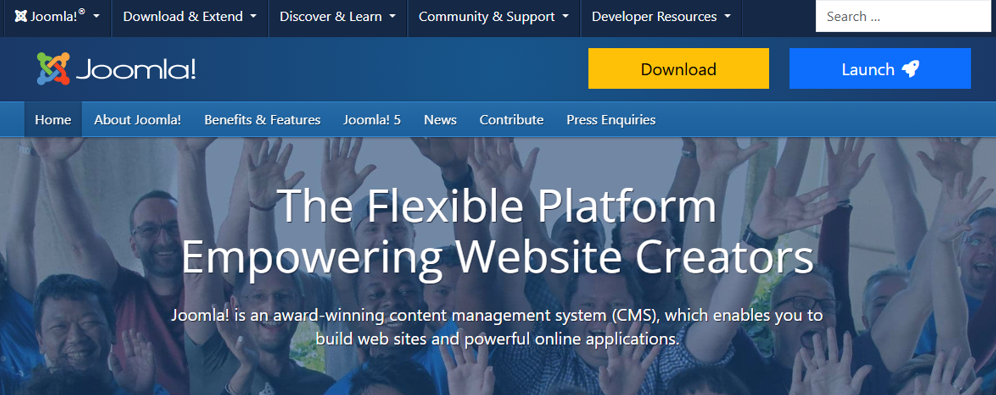
Joomla is designed to create portals and complex websites, offering more than 5,000 extensions that allow for versatile site designs and functionalities. Despite its capabilities, Joomla often receives criticism for its less intuitive user interface, which can be a hurdle for those new to website building.
On the other hand, WordPress powers more than 43% of websites due to its simplicity and ease of use. Its straightforward dashboard makes site management accessible to users without web development skills. Customization possibilities are almost endless, with over 59,000 plugins in the official library.
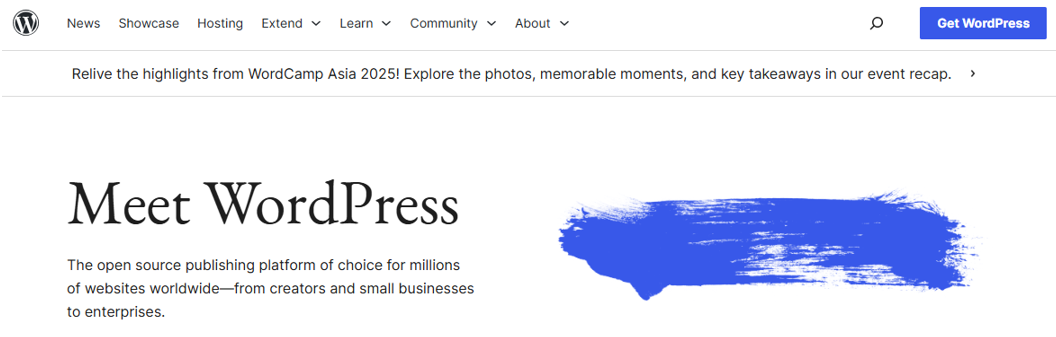
Unlike Joomla, WordPress excels in blogging, with specific features like a WordPress taxonomy system for better content organization. WordPress also has a vibrant community and extensive expert support, enhancing the user experience and resource availability.
Additionally, WordPress is great for growing with your future goals. It’s built to handle big websites just as well as small ones. Whether you are expanding your blog or turning it into a full business, WordPress scales up. It’s flexible, too, which means as your needs change, WordPress can adapt right along with you.
Another reason to convert Joomla to WordPress is the steady decline in Joomla’s market share, which shows a shift in user preference. As of February 2025, Joomla holds a market share of 2.2%, according to data from W3Techs.
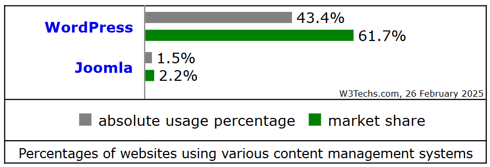
Source: W3Tech
Therefore, users considering a migration should note these trends and evaluate their Joomla site’s performance issues. Sometimes, performance can be improved by upgrading the hosting plan or switching providers, especially if the hosting service is optimized for Joomla.
Pre-requisites for Joomla to WordPress Migration
Moving your website from Joomla to WordPress is an important decision that needs careful consideration and planning. Before you begin the transition, secure the foundational elements for your new site, such as a domain name and a reliable hosting plan.
If you already have these two things for your Joomla site, you may repurpose them for WordPress. However, it’s important to note that not all hosting solutions are created equal. Managed WordPress hosting is recommended over cheaper, basic hosting options for optimal performance and reliability.
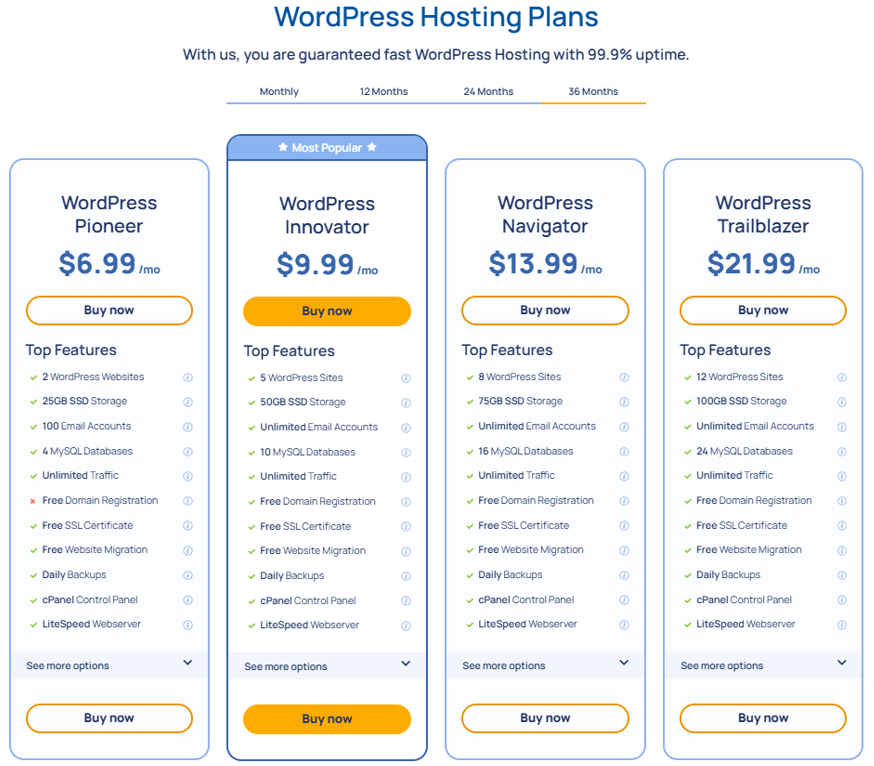
WordPress Hosting offers numerous benefits, particularly for those new to the platform. Those hosting providers specialize in WordPress and can take much of the heavy lifting for you, including the initial installation of WordPress software.
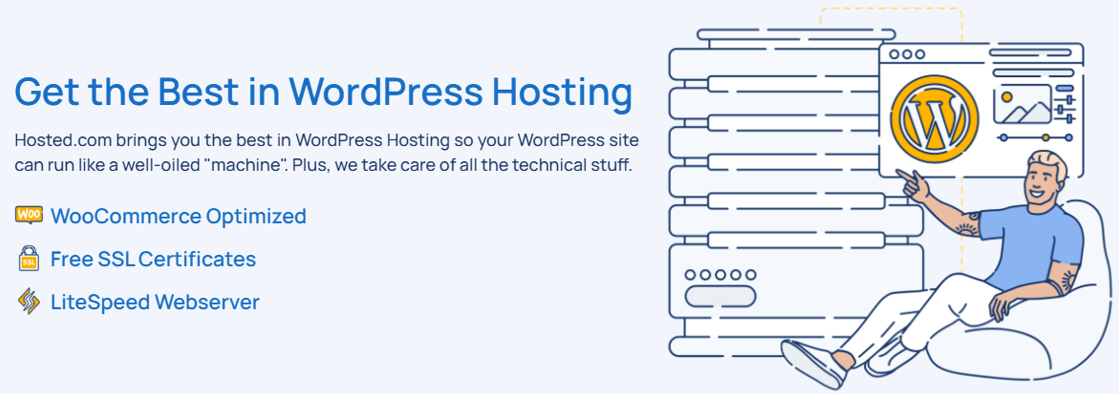
This can be incredibly useful if you’re unfamiliar with the technicalities of setting up a new site. Beyond installation, managed hosting services take care of much of day-to-day maintenance, backup, and site optimization, which allows you to focus more on content creation and less on backend management.
The support and maintenance provided by managed WordPress hosting are priceless. These providers are WordPress experts and offer dedicated support to quickly resolve any issues that arise, making them an excellent choice for ensuring your site operates smoothly.
Even if you are familiar with WordPress, having a managed host can lighten your workload, allowing you to dedicate more time to strategic activities like growing your audience or enhancing site features. Lastly, if you’re concerned about the logistics of migrating from another host, many WordPress hosting providers offer free migration services.
Companies like Hosted® provide these services as part of their hosting packages and will guide you through the process.
5 Steps to Migrate from Joomla to WordPress
Migrating from Joomla to WordPress is straightforward if you follow these 5 essential steps.
- First, ensure you back up your Joomla site to protect your data.
- Then, install WordPress and get it all set up.
- Next, add the FG Joomla to WordPress plugin, which will help transfer your content smoothly.
- After that, move all your Joomla data over to WordPress.
- Finally, update your domain settings so visitors are directed to your new WordPress site.
With these steps, you’ll ensure a seamless transition to a more flexible and user-friendly platform.
Back Up Your Joomla Site
Before you start migrating your Joomla website to WordPress, it’s essential to back up your existing Joomla site. A complete backup ensures you won’t lose any content or important data if any issues arise during migration. The best tool for this job is the Akeeba Backup extension, a popular choice among Joomla users for its reliability and ease of use.
To get started with Akeeba Backup, first install the extension on your Joomla site. To do that:
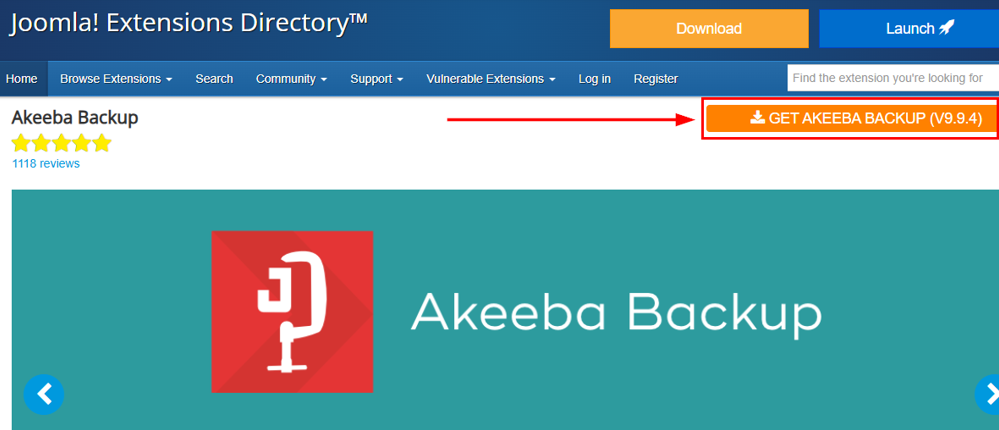
Visit the Akeeba Backup official website and click GET AKEEBA BACKUP (V9.9.4) to download the latest version of the Akeeba Backup extension suitable for your Joomla version (for this tutorial example, we use Joomla 5.2.4).
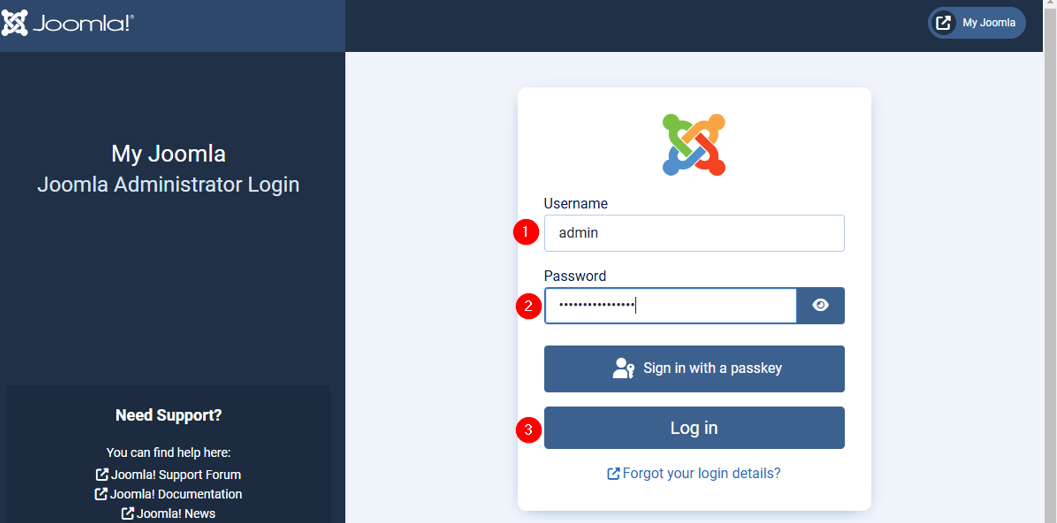
Once downloaded, open your web browser and enter the URL to access your Joomla administrator panel, usually something similar to:
http://www.yourwebsite.com/administratorThen, enter your username and password to log in. Optionally, you can sign in with a passkey.
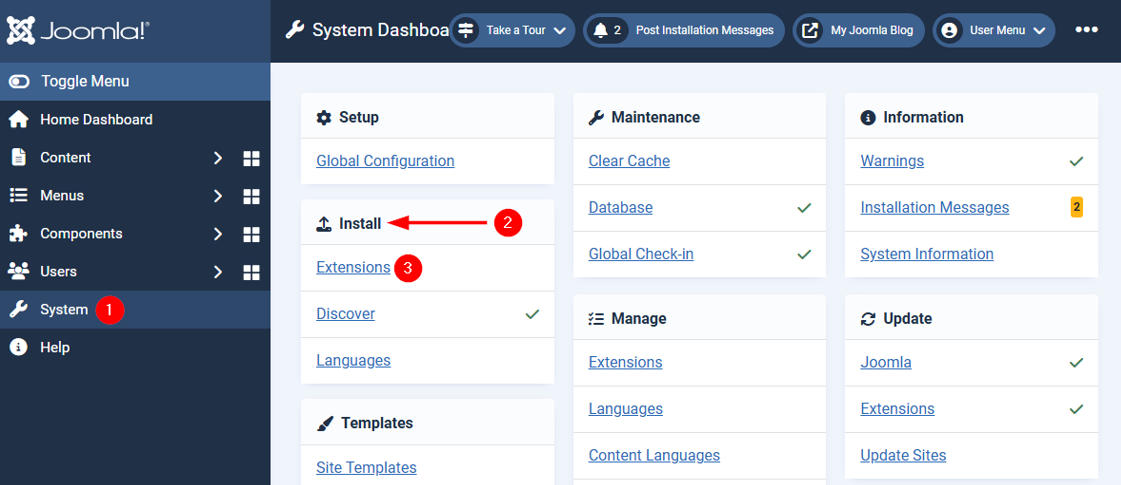
In the Joomla administrator panel, go to System → Install → Extensions.
Under Upload Package File, click Browse for File. Select the Akeeba Backup package file you downloaded earlier. This will take a few moments to install.
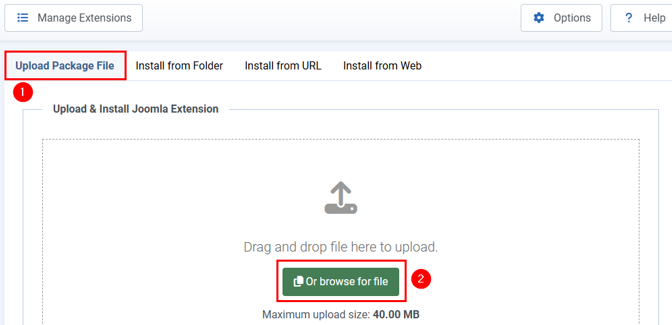
After installation, you may need to configure the extension to suit your backup needs. Go to Components → Akeeba Backup for Joomla. Follow the on-screen instructions step by step to configure your backup profiles and preferences.

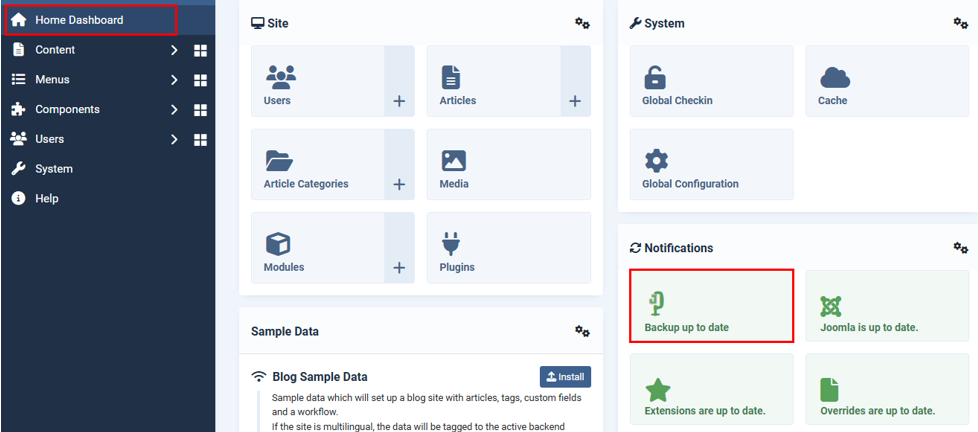
Once the extension is installed and configured, navigate to Home Dashboard via the left-hand menu in Joomla. You should see a new option in Notifications labeled Backup Up to Date.
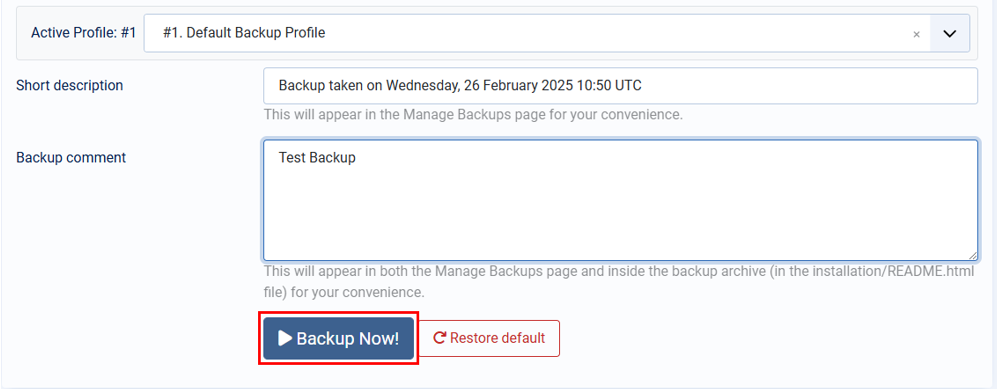
To create a backup, go to Components → Akeeba Backup → Backup Now. Name this backup and include a comment so you understand this better. Once satisfied with the details you’ve entered, click Backup Now.
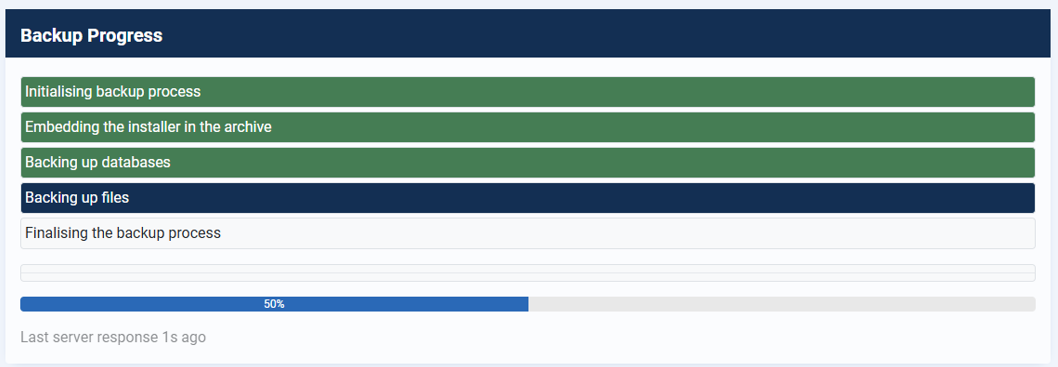
This will take a few minutes, depending on your internet speed.
Once the backup is complete, you’ll see the below confirmation message. Click Manage Backups.

Locate the backup you created and click Download to save it on your local computer.

You don’t need to install extensions if you’re a Hosted® customer. You can directly click Backup in Softaculous to download your Joomla site backup.

Install & Set Up WordPress
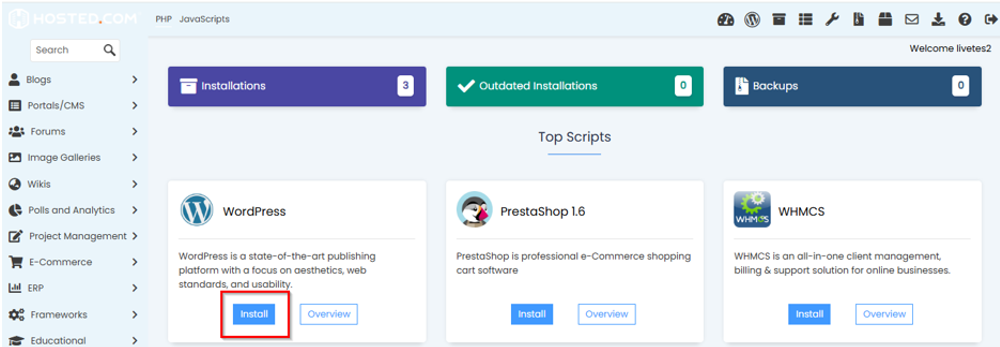
Once you have chosen your hosting platform, the first thing to do is install WordPress. Most hosting providers, including Hosted®, simplify this with one-click installation options. This means you can set up WordPress with just a few clicks. We’ve covered it in a separate guide that you can refer to in the following link:
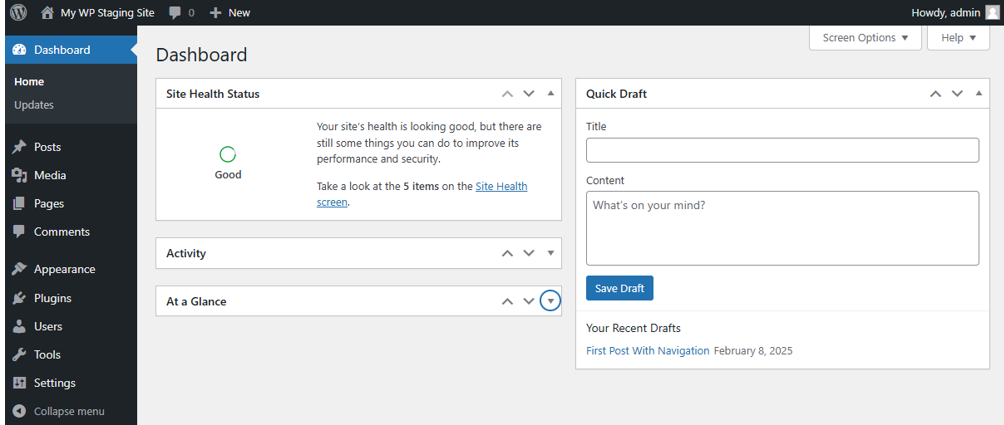
After installation, the next step is getting to know your WordPress Dashboard. This is the control center where you manage everything about your site, from how it looks to the content you post. When you first log in, take some time to explore.
You’ll see areas like Posts, where you can create and manage blog entries, Pages for static content like About Us or Contact pages, and Settings, where you can adjust your site’s features to match your needs.
Don’t forget to configure WordPress settings. This must be done right after WordPress installation. Information on what you need to configure and how you do it is covered in the following tutorial (including changing the permalink structure):
– How to Configure WordPress Settings After Installation
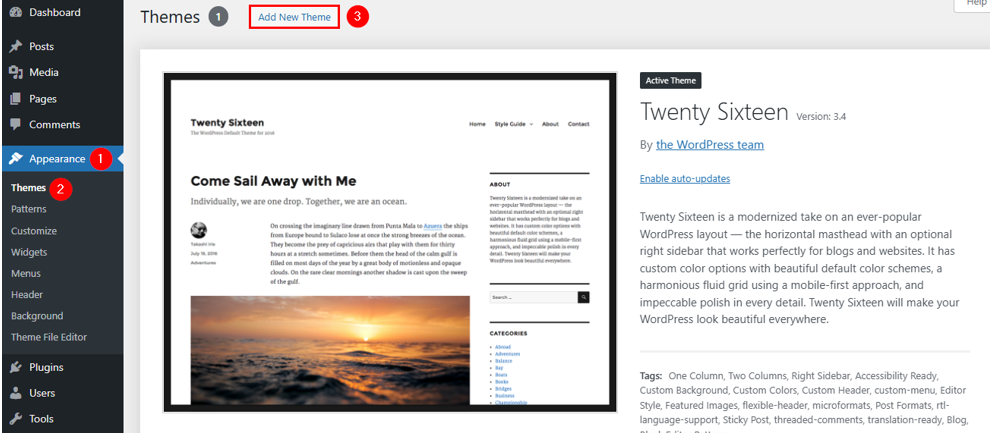
After updating the WordPress permalink structure and other settings, choose a theme to give your website a professional look. You can do that by navigating to Appearance → Themes → Add New Theme. To simplify it for you, we’ve written a detailed tutorial about this:
– How to Install WordPress Themes: A Beginner’s Guide
Install FG Joomla to WordPress Plugin
Once your WordPress site is set up, the next step in migrating from Joomla is to install a plugin that makes the transition smoother. For this, the FG Joomla to WordPress plugin is a popular choice. It helps you move all your Joomla content to WordPress without manually copying each piece.

Here’s how you can get this plugin on your WordPress site:
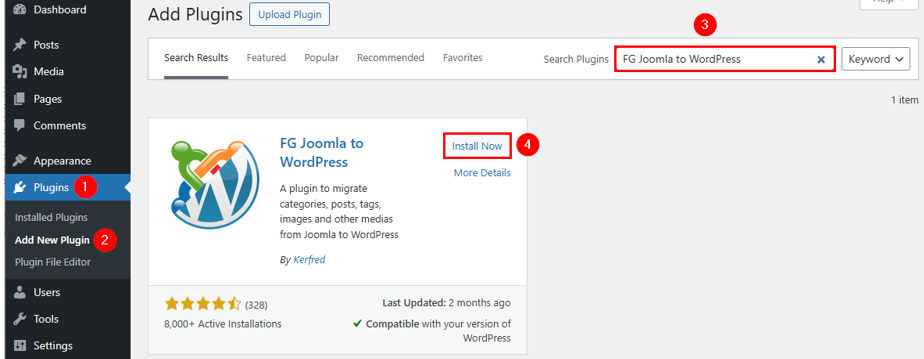
Log in to your WordPress Admin Dashboard. From here, navigate to Plugins → Add New Plugin. This brings you to the WordPress plugin repository, which is a big library of tools you can add to your site.
In the Search Plugins search bar in the plugin repository in the top right, find FG Joomla to WordPress. Your plugin will appear in the search results. Once you see it, click Install Now. WordPress will download and install the plugin for you.
After the installation is finished, click Activate to enable the plugin and start using it.
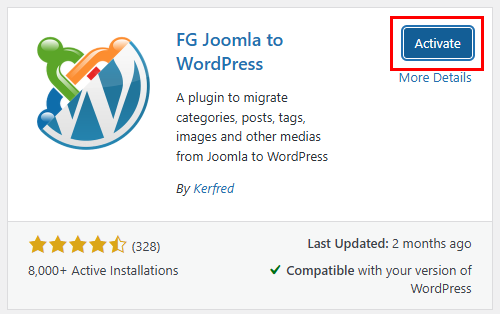
With the plugin installed and activated, you can move your content from Joomla to WordPress.
Unlock the full potential of your website with fast, secure WordPress Hosting that offers easy-to-use customization, thousands of themes and plugins, and powerful SEO tools.
With top-notch performance, reliable security, and seamless updates, WordPress makes it simple to create and manage a site that grows with your business.
Migrate Joomla to WordPress
Go to WordPress Dashboard → Tools → Import. Here, you’ll see a list of importers for different platforms. Find the Joomla (FG) importer and click Run Importer to initiate the process.
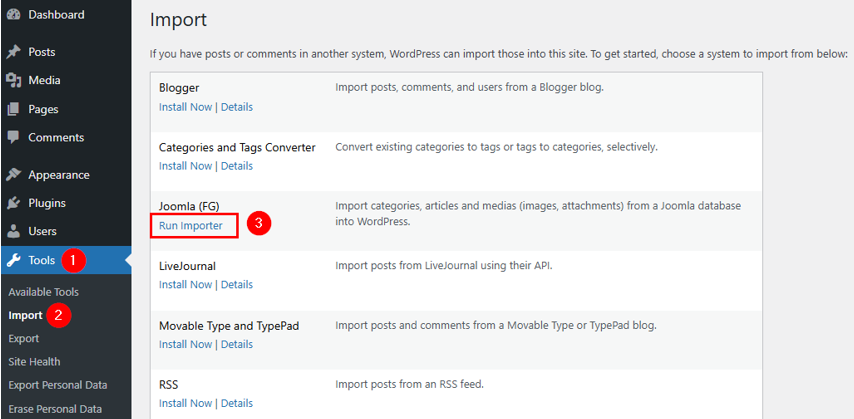
Before importing your Joomla content, review what you will be importing, like categories, posts, pages, media, and tags.
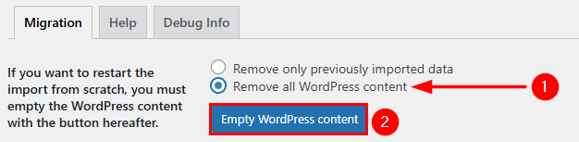
If you want to start fresh, head to Remove all WordPress content and click Empty WordPress content to clear any existing content from your WordPress site.
We suggest removing existing content, even on a newly installed website, because the sample pages generated during the WordPress setup may not be necessary.
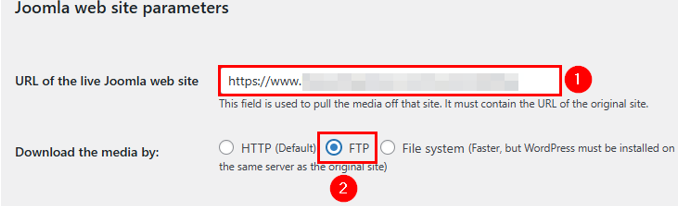
Next, provide your live Joomla website’s URL and choose FTP for Download the Media By. This tells WordPress how to download media files. By default, it’s set to HTTP; however, choosing FTP is better, particularly if you have a large website.
After that, connect your WordPress site to your Joomla server. Fill in the FTP credentials: FTP host, FTP Port, FTP login, FTP password, Protocol, and FTP base directory. Once you have filled in all the details, click Test the FTP connection.
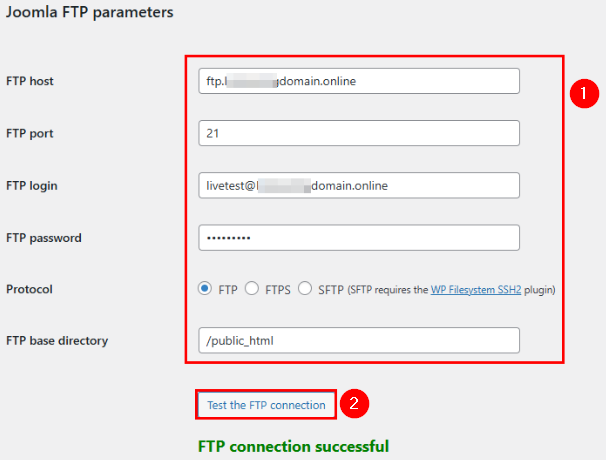
Once successfully connected, you can connect your site with your Joomla database. To do that:
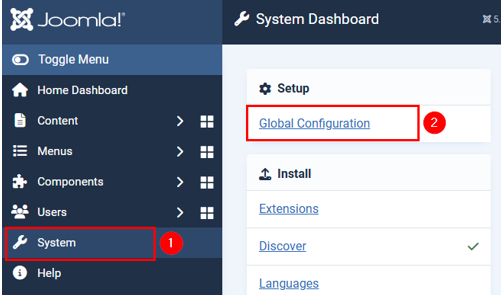
Log into your Joomla admin panel, find System, and select Global Configuration.
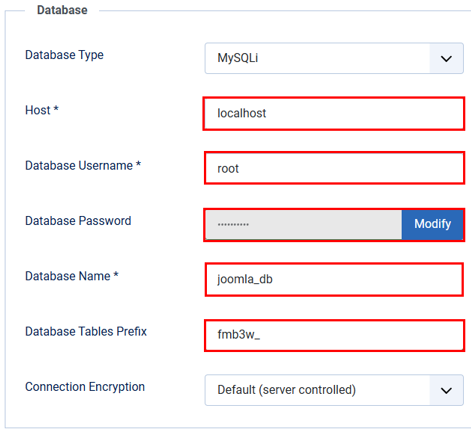
Then, click Server and navigate to Database to find your database parameters. Copy them into a TXT file or write them in your notebook. For the next steps, you will need these details, including the Host (hostname), Database Name, Database Username, Database Password, and Database Table Prefix.
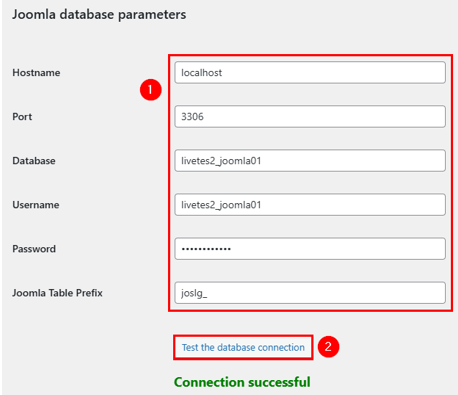
Now, go back to WordPress where you tested the FTP connection. Scroll down to Joomla database parameters and write in the database credentials you just copied into a TXT file or notebook. Then, click Test the database connection.
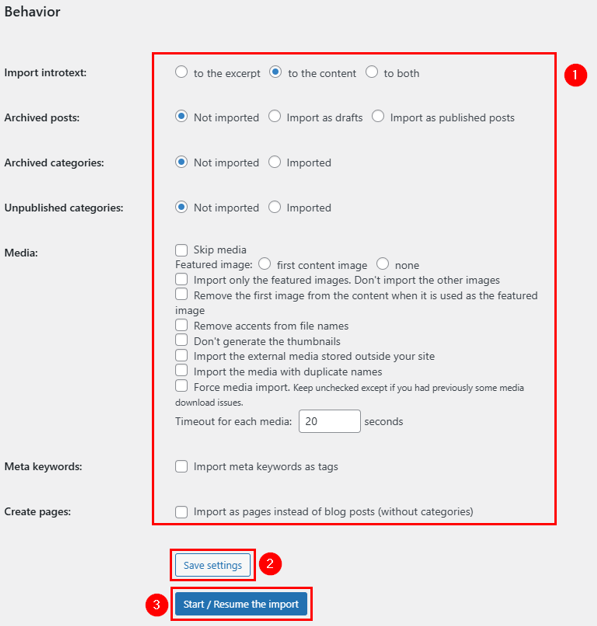
After that, you need to configure the import settings. To do that, go to Behavior; this section allows users to specify what content type and data they wish to import to their new WordPress site. Here’s a brief overview of each option:
- Import introtext: In Joomla, introtext is a brief snippet that provides visitors with an article preview, similar to what may appear on a WordPress category page. You can import this as an excerpt, integrate it with the full content, or do both.
- Import Archived Posts: Decide whether to exclude these posts or import them as drafts or published posts.
- Media: You can bypass this section or select specific files to speed up the migration. Options include importing only featured images or media files hosted on external sources. You can also adjust the media timeout settings for larger files.
- Meta keywords: Determine if you wish to import meta keywords as tags on your WordPress site for SEO purposes.
- Create pages: Convert Joomla articles to WordPress pages instead of standard posts.
After configuring your settings, click Save settings and then click Start / Resume the import.
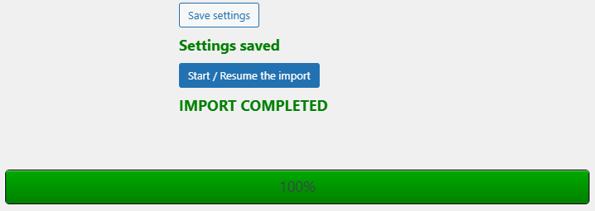
The duration of a Joomla to WordPress migration varies based on the size of your website. It’s important to wait until you see the IMPORT COMPLETED message and the progress bar reaches 100%.
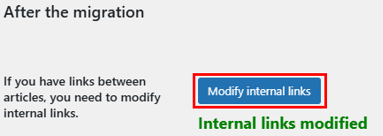
After the import, you may find a few internal links within posts pointing to your old Joomla site. To fix this, go to After the migration and click Modify internal links. Doing so will scan and fix these broken internal links, ensuring everything in your new WordPress site links correctly.
Point Your Domain to Your WordPress Website
The final step involves directing the domain of your previous Joomla site to your newly established WordPress site. While you can register a new domain for your site, it’s generally not advisable if your website already has established traffic and has been active for a while. In such circumstances, changing the domain could lead to SEO challenges and negatively affect user experience.
Therefore, we recommend you direct your old domain to a new website. This is a straightforward process, and we explain it step-by-step in the following tutorial:
– Point External Domain Name to Hosted®’s Hosting Server
Remember, it may take 24 to 48 hours for these changes to propagate due to DNS updates. You may also need to update the domain name in the General settings of your WordPress site.
Post-Migration Tasks
After you’ve migrated your site, you need to take several important steps to ensure everything functions smoothly and your new site is ready to go live. Here’s what you need to focus on:
Domain Redirection
First, redirect your domain to your new WordPress site. This means updating your domain settings so that anyone visiting your old website address is automatically taken to your new WordPress site.
Then, set up 301 redirects for all your old Joomla URLs to the new WordPress URLs. This helps maintain your SEO rankings and ensures any old links found via search engines or saved by your users will still work, taking visitors to the correct pages on your new site.
Test & Quality Assurance
Before officially launching your new WordPress site, conduct thorough testing. Check how your website looks and functions on devices like phones, tablets, desktops and several web browsers to ensure everything is perfect.
This is also a great time to ask a few users to explore the new site. They can provide valuable feedback that may reveal small issues you missed. Addressing these issues before going live helps fix problems and improve user experience.
Launch a New WordPress Site
With testing complete and everything set up correctly, you’re ready to launch your new WordPress site. Make your final checks, ensure all settings are correct, and prepare for the switch.
Once your site is live, monitor its performance closely. Watch how fast pages load, check for any unexpected errors, and listen to user feedback to make necessary adjustments.
This ongoing monitoring helps you keep the site running well and ensures visitors have a great experience exploring your new WordPress website.
![Strip Banner Text - Migrate your site to WordPress with Hosted®’s fast, secure Hosting. [More Info]](https://www.hosted.com/articles/wp-content/uploads/2025/03/joomla-to-wordpress-2-1024x229.webp "Migrate your site to WordPress with Hosted®’s fast, secure Hosting.")
FAQS
What are the main benefits of migrating from Joomla to WordPress?
Migrating from Joomla to WordPress offers several benefits. WordPress is generally easier to use and has a more user-friendly interface, which is great for beginners. It also provides various themes and plugins, allowing for greater customization and functionality. Also, WordPress tends to be better for SEO, helping your website rank higher in search results and attract more visitors.
Can I migrate my Joomla templates to WordPress?
Joomla templates cannot be directly transferred to WordPress because they use different coding and architecture. However, you can find similar themes in WordPress, or you can use a WordPress theme that is highly customizable to recreate the Joomla site’s look and feel. Many professional web designers and tools are available to help convert your Joomla design into a WordPress theme.
What happens to my Joomla extensions when I migrate to WordPress?
Joomla extensions will not work in WordPress because the two platforms use different structures and coding standards. After migrating, you’ll need to find WordPress plugins that replicate the functionality of your Joomla extensions. The WordPress plugin repository is extensive, so chances are high you’ll find alternatives that meet your needs or even improve on what you previously had in Joomla.
Can I keep my Joomla site live while setting up WordPress?
Yes, you can keep your Joomla site live while you set up your WordPress site. We recommend you develop your WordPress site on a separate staging environment or subdomain; this lets you work on your new site without affecting the live Joomla site. Once the WordPress site is fully prepared and tested, you can make it live, minimizing downtime.
What should I do with Joomla-specific content that doesn’t directly translate to WordPress?
Joomla-specific content like certain modules or custom components may not have direct equivalents in WordPress. In these cases, look for plugins that can add similar functionalities or consider custom development if the features are critical to your site’s operations. Also, it can be helpful to evaluate whether all features from Joomla are necessary, as simplifying could improve site performance and user experience.
Other Tutorials of Interest
– WordPress Featured Image Size: How to Change it & Best Practices
– How To Change Font Color In WordPress: 5 Easy Methods
– How to Add WordPress Custom CSS: 5 Easy Methods
– How To Edit Header In WordPress With Site Editor & Customizer
– How To Upload A Document To A Website Using WordPress And File Manager
- About the Author
- Latest Posts

Rhett isn’t just a writer at Hosted.com – he’s our resident WordPress content guru. With over 6 years of experience as a content writer, with a background in copywriting, journalism, research, and SEO, and a passion for websites.
Rhett authors informative blogs, articles, and Knowledgebase guides that simplify the complexities of WordPress, website builders, domains, and cPanel hosting. Rhett’s clear explanations and practical tips provide valuable resources for anyone wanting to own and build a website. Just don’t ask him about coding before he’s had coffee.