


 Contact Support
 Sign In

Imagine landing on a WordPress website with a never-ending list of blog posts or products. It’s hard to find what you’re looking for, right? That’s where pagination comes in. In WordPress, pagination breaks down long lists of content into separate pages. Instead of showing everything at once, it organizes posts, pages, or products across multiple pages. This makes it easier for users to find what they need without having to scroll.
But pagination isn’t just about organizing content. It also helps your site load faster. Instead of loading dozens of posts at once, it only loads a set number of items per page. This reduces server load and keeps your site running smoothly. Plus, search engines prefer well-structured content, so good pagination can also boost your SEO.
So, how do you add WordPress pagination? You have two primary options: a manual approach or using a plugin. The manual method gives you complete control over the design and functionality, but it requires some coding skills. Plugins, on the other hand, are easier to set up and often include pre-designed styles and settings.
This guide explores both methods step-by-step. Whether you’re confident with code or prefer a simpler plugin solution, you’ll learn how to set up effective pagination for your WordPress site.
KEY TAKEAWAYS
- Pagination organizes content into multiple pages, making navigation easy.
- You can add pagination manually or use WordPress pagination plugins.
- Styling pagination links with CSS ensures they’re easy to click and look good on mobile.
- AJAX pagination plugins load content dynamically without refreshing the page.
- Testing ensures that pagination links work and that content is in the correct order.
- Consistent pagination styling maintains a cohesive design and enhances user experience.
TABLE OF CONTENTS
What Is WordPress Pagination?
Pagination in WordPress is a way to split your content into multiple pages instead of showing everything on one long page. It organizes your posts, products, or categories into separate sections, which makes it easier for users to navigate your site. For example, if you have 50 blog posts, you can use pagination to display 10 posts per page, creating 5 pages that users can click through.
There are three main types of pagination to add to your WordPress site:
Numeric Pagination
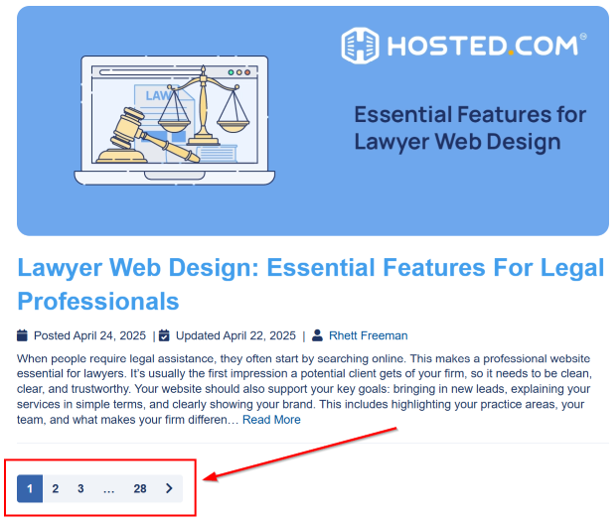
This type shows numbered links (1, 2, 3, 4, 5) at the bottom of a page. Users can click on a specific number to jump to that page. It’s excellent for sites with lots of content because it helps users find specific pages quickly. At Hosted®, we use this pagination type.
Next/Previous Pagination
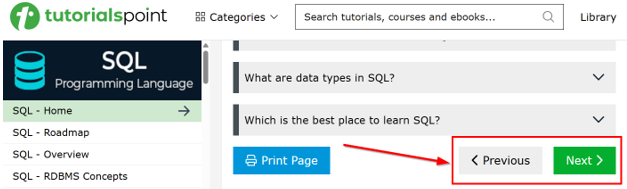
This simple setup shows Next and Previous buttons at the bottom of the page. Users can click Next to move forward and Previous to go back. It’s easy to implement, but not as specific as numeric pagination. Here’s an example of Next/Previous pagination:
Infinite Scroll
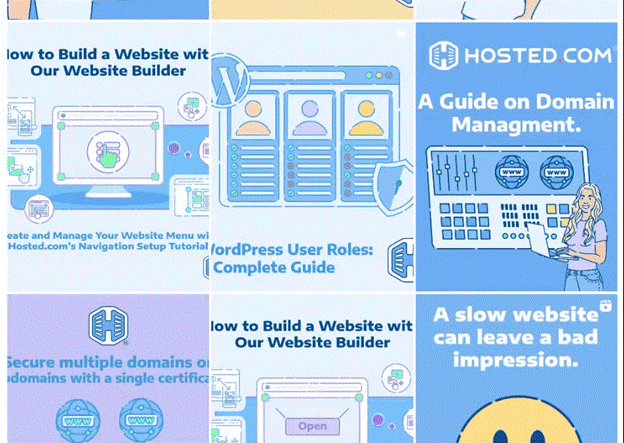
With infinite scroll, new content automatically loads as users scroll down the page. It’s a popular choice for blogs, ecommerce sites, and social media platforms, keeping users engaged without clicking through multiple pages. However, it can slow your site down if not implemented properly. Here’s an example of Instagram that loads posts as a user scrolls through:
Adding pagination to your WordPress site isn’t just about organizing content. It also improves user experience by making content easier to find keeping page load times in check. Plus, search engines can better crawl and index your content when it’s well-structured.
In the next sections, we cover how to add WP pagination manually using code and how to do it using plugins. Let’s keep going.
How to Add WordPress Pagination Manually
In this section, we show you 2 methods to add pagination in WordPress:
- By Editing Theme Files
- By Using WordPress Editor.
Let’s start with the first one.
Revise Theme Template Files to Add Pagination Manually
If you’re comfortable with coding, you can manually add pagination to WordPress. This method gives you full control over how pagination looks and works on your site. Let’s break it down step-by-step.
First, you need to access your active theme’s template files (in this tutorial example, we use the Twenty Seventeen theme). The most common files for pagination are:
- index.php: Displays your main blog page.
- archive.php: Displays category, tag, or date-based archives.
- search.php: Shows search results.
Before you start editing theme files, create a full website backup to restore later if anything goes wrong. Additionally, if you want to keep customizations even after the theme update, ensure you use a child theme.
Once you’re ready, go to WordPress Dashboard → Appearance → Theme File Editor to open the file where you want to add pagination. Alternatively, you can also use the FTP client FileZilla to access theme files.
Then, look for the main query loop, which is the section of code that fetches and displays posts. It typically looks like this:
<?php
if ( have_posts() ) : while ( have_posts() ) : the_post(); ?>
  <!-- Your post content goes here -->
<?php endwhile; endif;
?>
This is where you’ll add the pagination function.
Add Pagination Function
WordPress has a built-in function called paginate_links() that lets you add numeric pagination easily. It generates a series of numbered links that users can click to move through your content pages.
Here’s a basic example of how to add WordPress pagination right after the main loop:
<?php
  $args = array(
    'total'   => $wp_query->max_num_pages,
    'current' => max(1, get_query_var('paged')),
    'prev_text' => 'Previous',
    'next_text' => 'Next',
  );
  echo paginate_links($args);
?>
Here’s a complete example showing where exactly to add the code:
<div id="primary" class="content-area">
    <main id="main" class="site-main">
        <?php
        if ( have_posts() ) :
            // Start the Loop.
            while ( have_posts() ) :
                the_post();
                /*Include the Post-Format-specific template for the content.
                 * If you want to override this in a child theme, then include a file
                 * called content-___.php (where ___ is the Post Format name) and that
                 * will be used instead.*/
                get_template_part( 'template-parts/post/content', get_post_format() );
            endwhile;
            $pagination_args = array(
            'total'        => $wp_query->max_num_pages,
            'current'      => max(1, get_query_var('paged')),
            'show_all'     => false,
            'end_size'     => 2,
            'mid_size'     => 1,
            'prev_text'    => __('« Prev'),
            'next_text'    => __('Next »'),
            );
            echo '<div class="custom-pagination">';
            echo paginate_links($pagination_args);
            echo '</div>';
         else :
            get_template_part( 'template-parts/post/content', 'none' );
        endif;
        ?>
    </main><!-- #main -->
</div><!-- #primary-->
After adding the code, click Update File to save changes.

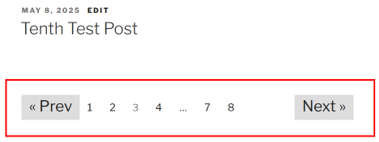
Here’s how it looks on the front end:
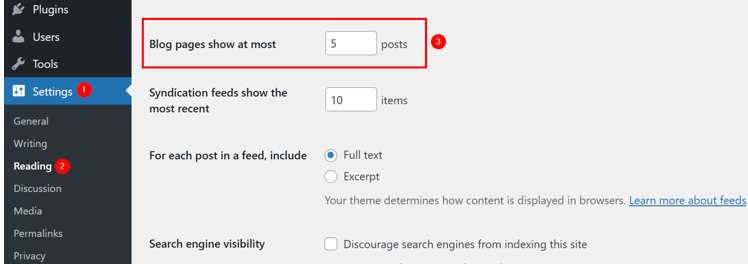
Remember: WordPress displays 10 posts per page by default. So, if you have 23 posts, it’ll create 3 pages. The first two will display 10 posts each, whereas the last page will show the remaining 3 posts.
However, if you want to change this setting, go to WordPress Dashboard → Settings → Reading and update the number for the Blog pages show at most option.
Split a WordPress Page or Post into Multiple Pages
Previously, we discussed how to add pagination if you have several posts or articles. However, if you’re dealing with a long WordPress post or page, breaking it into multiple pages can be a great way to improve readability and reduce load time.
You can use this method for tutorials, guides, or any content that feels too overwhelming to present on a single page. WordPress offers 2 ways to add page breaks:
- Through the Block Editor (Gutenberg)
- Via Classic Editor.
Let’s look at both methods.
Hosted®’s WordPress Hosting is designed for speed and security, featuring 1-click installs, cPanel access, and free daily backups.
You’ll also get automated plugin updates, advanced caching for optimal performance, and access to expert support whenever you need it.
Add Page Breaks in Block Editor (Gutenberg)
If you’re using the WordPress Block Editor, you can easily insert page breaks using the Page Break block. Here’s how:
Open the post or page you want to split in the editor. Navigate to the position where you wish to add a break. Then, type /page break and choose Page Break WordPress block.
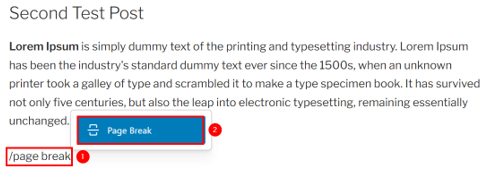
This’ll look as follows within the editor:
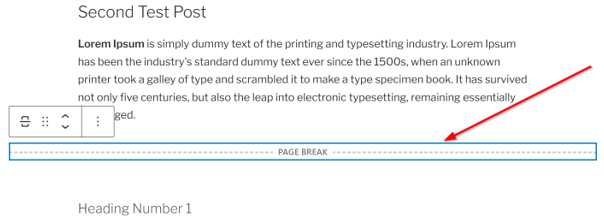
You can add multiple Page Break blocks in one post. Once you add all the breakpoints, click Save at the top right to save your post (or page if working with pages).
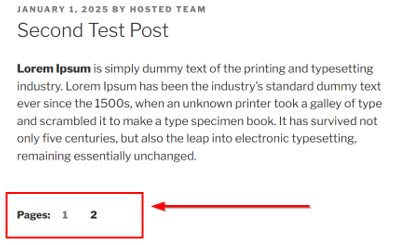
We added one page break in our blog post example, and it looks as follows:
Add Page Breaks in Classic Editor
If you’re using the Classic Editor, you can insert page breaks in 2 ways:
- Using Keyboard Shortcut
- Using HTML Tag.
Let’s start with the first one, leading to the second method below.
Open the page or post in the Classic Editor. In Visual, place the cursor where you want the break to occur. Then, press the keyboard shortcut Alt + Shift + P. The page break will appear as a dashed line in the editor.
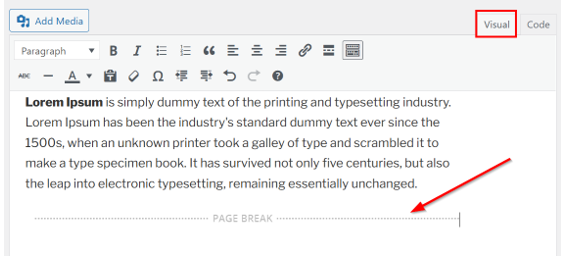
Note: If you’re using the GoFullPage – Full Page Screen Capture Chrome extension, then this keyboard shortcut (Alt + Shift + P) will not work. In this case, disable the extension temporarily or go through the following steps to add page/post breaks:
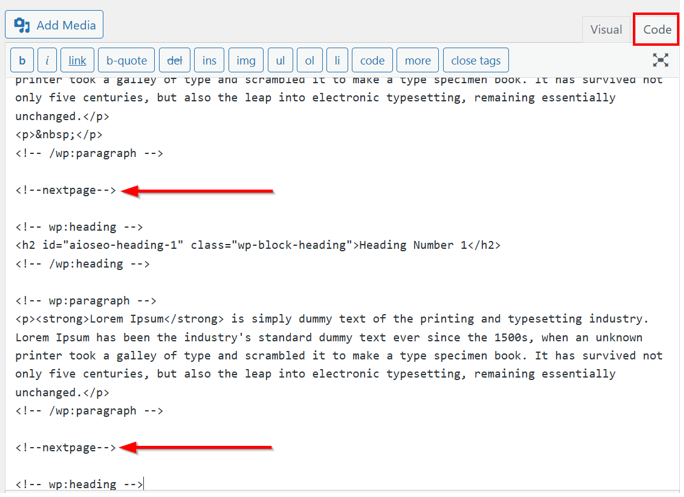
Switch to Code view in Classic Editor and paste the following tag where you want the break to occur:
<!--nextpage-->Repeat the process to add multiple page breaks.
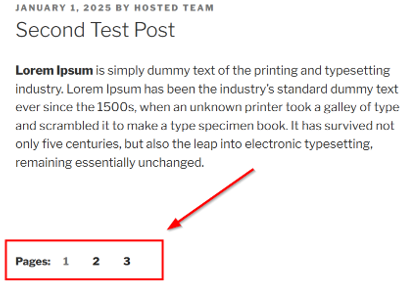
Once done, save your post or page and then open it in a new tab to see the content divided into multiple pages.
Here’s how WordPress pagination looks after using <!–nextpage–> twice:
Add WordPress Pagination Using Plugins
If you’re not comfortable editing theme files or want a quick solution, using a WordPress pagination plugin is the easiest way to add pagination to your site. Plugins come with pre-built styles and customization options, so you don’t have to worry about coding.
In this section, we show you 2 plugins, depending on your pagination requirements:
1. WP-PageNavi: It’s a simple yet powerful plugin that adds numbered pagination links to your WordPress site. Instead of using the basic Older and Newer links, it shows pages as numbers, making it easy for users to jump to specific pages. This is especially useful for blogs with many posts or for sites with archive pages.

2. Pagination by BestWebSoft: This is a great option if you want more advanced pagination options without editing code. It’s easy to set up and offers multiple customization options, making it ideal for bloggers, online stores, and news websites. With this plugin, you get customizable pagination styles for different post types, numeric pagination, and flexible positioning.

Use WP-PageNavi Plugin
Here’s how to get started with WP-PageNavi:
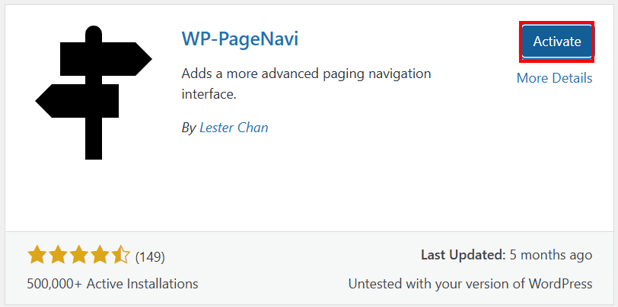
Go to your WordPress Admin Dashboard. Navigate to Plugins → Add New. In the search bar, type WP-PageNavi. Once it appears, click Install Now next to the plugin name.

Once installed, click Activate.
Next, go to Settings → PageNavi from your dashboard. Here, you’ll see options to change the text labels, like Next Page or Previous Page. You can choose whether to display a First and Last page link.
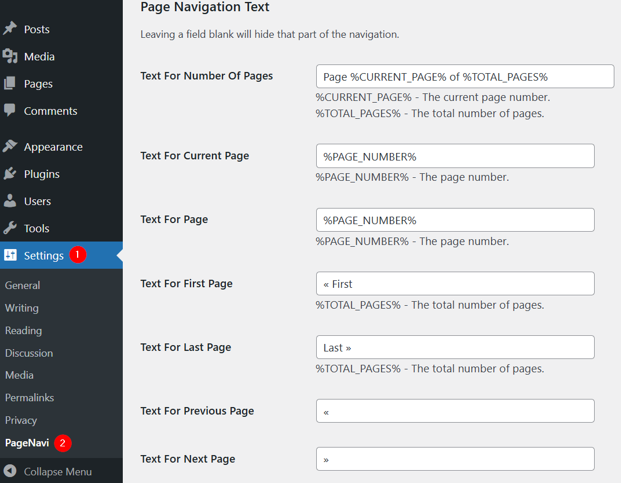
You can also set how many page numbers to show before and after the current page. Plus, you can adjust how the pagination looks using CSS if necessary. You may also select a pre-defined style from the settings.
Once you’ve configured your settings, click Save Changes to update the pagination style.

After that, visit your site and navigate to a page that shows multiple posts, such as your blog archive. You should now see numbered pagination at the bottom, making it easy for users to jump between pages.
Use Pagination by BestWebSoft Plugin
First, install and activate the Pagination by BestWebSoft (BWS) plugin. Then, click Pagination to open the settings page.
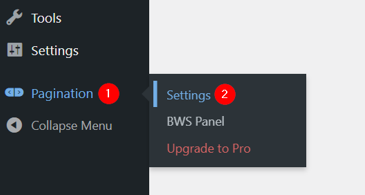
Here, you can pick the post types where you want pagination to appear (e.g., posts, pages, categories).

Choose the pagination type, such as numeric, next/previous, infinite scroll, or a single AJAX button. You can only use this feature if you’re using the paid version of this plugin.
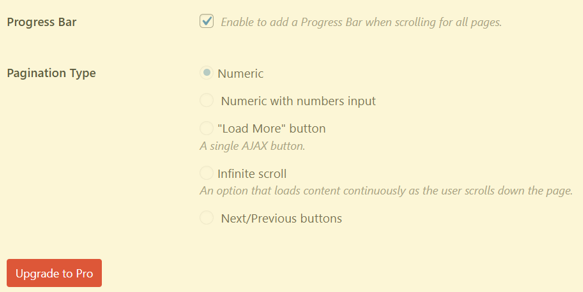
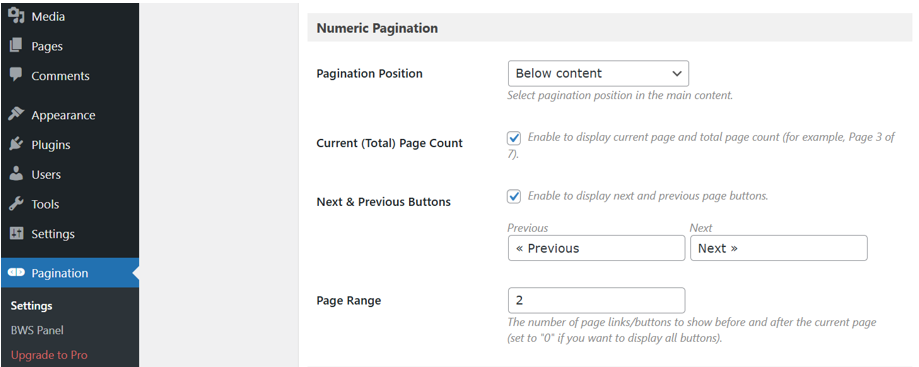
You may also adjust the WordPress pagination position, the number of pages to display at once, the next & previous buttons, and the page range.
If you scroll down to Custom Styles on the same page, you can change font color, padding, the background color, and border style of the pagination links. Furthermore, you can enable or disable hover effects to enhance the design (if required).

Once you’ve customized the settings, click Save Changes at the bottom of the page to apply the pagination. Now, visit a post or archive page to check how the pagination looks. You should see the customized pagination links with your chosen styles and settings.
Best Practices for WordPress Pagination
We’ve already discussed that adding pagination to your WordPress site can improve user experience and help organize your content. However, it’s essential to follow some best practices to ensure your WP pagination is user-friendly, visually appealing, and functional across all devices:
- Ensure your pagination links are easy to find and click.
- Use bold, contrasting colors and clear text labels such as 1, 2, 3, Next, and Previous.
- Avoid using tiny or hidden links that may confuse users.
- You must ensure the links stand out visually, so visitors can easily go through your content without missing any pages.
- Flexible pagination layouts are best, as that adapt to different screen sizes, and add enough padding around the links to make them easy to tap without zooming in.
- Don’t use excessive or insufficient WordPress pagination.
- Always test pagination after making changes to ensure that all links work correctly and direct users to the right content.
- Check the order of posts to confirm that they’re displayed properly.
- Make the design of pagination links consistent throughout your site.
- The same colors, font sizes, and button styles must be used on all pages.
Following these best practices ensures your WordPress site remains well-structured and user-friendly, making it easy for visitors to locate and access your content.
![Strip Banner Text - Get WordPress Hosting that supports smarter website features. [Learn More]](https://www.hosted.com/articles/wp-content/uploads/2025/05/wordpress-pagination-2-1024x229.webp "Get WordPress Hosting that supports smarter website features")
FAQS
Can pagination affect my website’s SEO?
Yes, WordPress pagination can impact SEO if not implemented correctly. Proper pagination helps search engines crawl and index your content more effectively. However, excessive pagination or broken links can create duplicate content issues or orphaned pages. Use canonical tags and set up the pagination structure correctly to improve your site’s SEO.
Is it better to use manual pagination or a plugin?
Choosing between manual pagination and a plugin depends on your skill level and website requirements. Manual pagination offers more control over design and structure but requires coding knowledge. Plugins are easier to implement, provide built-in styles, and often include advanced features like AJAX or infinite scroll without the need for coding.
How does infinite scroll differ from traditional pagination?
Infinite scroll automatically loads new content as the user scrolls down, creating a continuous flow of posts. Traditional pagination, on the other hand, breaks content into separate pages with numbered links. Infinite scroll is ideal for visually engaging content, while numbered pagination is better for more organized navigation and SEO.
Can I use multiple pagination methods on the same website?
Yes, you can use different pagination methods on various sections of your website. For example, you may use numeric pagination on your blog archive and a Load More button on product listings. However, be consistent in design and structure to avoid confusing visitors and disrupting the user experience.
How can I track clicks on pagination links?
You can track pagination clicks using analytics tools like Google Analytics. Setting up event tracking helps you monitor how users interact with pagination links. This will help you understand which pages are most visited and whether users are clicking through to older content.
Other Related Tutorials
– How to Install WordPress Themes: A Beginner’s Guide
– How To Upload A Document To A Website Using WordPress And File Manager
– How to Change Fonts in WordPress: 6 Easy Ways
– WordPress Blocks Features and Site Customization Options
– WordPress Widgets: How To Add & Use Them For Maximum Impact
– How To Configure WordPress Error Logs: Identify & Fix Issues
- About the Author
- Latest Posts

Rhett isn’t just a writer at Hosted.com – he’s our resident WordPress content guru. With over 6 years of experience as a content writer, with a background in copywriting, journalism, research, and SEO, and a passion for websites.
Rhett authors informative blogs, articles, and Knowledgebase guides that simplify the complexities of WordPress, website builders, domains, and cPanel hosting. Rhett’s clear explanations and practical tips provide valuable resources for anyone wanting to own and build a website. Just don’t ask him about coding before he’s had coffee.