


 Contact Support
 Sign In
Email accounts can be configured from IMAP to POP3, depending on how you want your messages to be stored and accessed. IMAP keeps emails synchronized across multiple devices by storing messages on the mail server, while POP3 downloads emails to a single device and typically removes them from the server.
If you prefer to store your emails locally, reduce server storage usage, or access your mail primarily from one device, switching from IMAP to POP3 may be the better option. This guide explains how to change an existing IMAP email account to POP3 using Hosted.com® email settings.
TABLE OF CONTENTS
Important Note Before You Begin
Email clients do not allow you to directly convert an IMAP account to POP3. Instead, you must remove the IMAP account and re-add it as a POP3 account.
Before proceeding:
- Back up any important emails stored on the server.
- Ensure you have your correct email password and server settings.
How to Change an IMAP to POP3
1. Login to your Hosted.com® account.
2. From the dashboard, open the Manage Services dropdown menu and choose the hosting service linked to the domain you wish to manage.
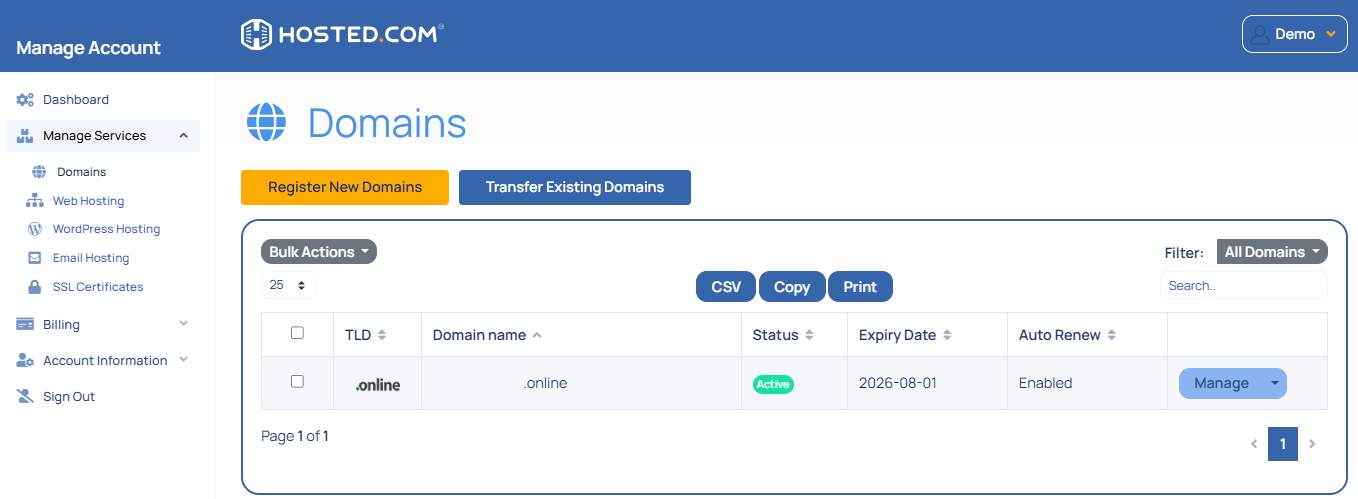
3. Click Manage next to your domain, and on the following page, select Login to access cPanel.

4. In cPanel, go to Email and select Email Accounts.

5. Locate your email address and click Connect Devices.
6. Make a note of:
Incoming server (POP3).
POP3 port number (SSL and non-SSL).
Outgoing server (SMTP).
SMTP port.
Username (full email address).
Encryption type.
Remove the Existing IMAP Account from Your Email Client
On the device or email application where the account is set up:
1. Open your email application settings.
2. Select the email account currently using IMAP.
3. Choose Remove, Delete, or Sign Out, depending on the application.
4. Confirm the removal.
This step does not delete the email account from the server; it only removes it from the device.
Re-Add the Email Account Using POP3
1. Open your email application on your device and select Add Account.
2. Enter your email address and password.
3. When prompted to select an account type, choose POP3.
4. Enter the POP3 and SMTP settings you noted earlier.
5. Complete the setup process.
6. Send a test email to an external address.
7. Receive a test email to confirm incoming mail works correctly.
That’s it! Your email account is now configured using POP3.
Additional Information
Key Differences Between IMAP & POP3
- IMAP: Emails remain on the server and sync across multiple devices. Recommended for users who access email from more than one device.
- POP3: Emails are downloaded to a single device and may be removed from the server. Ideal for local storage and single-device access.
POP3 Configuration Considerations
- POP3 usually downloads emails once and does not sync changes across devices.
- Deleted emails on your device may remain on the server, depending on client settings.
- Some email applications allow you to leave a copy of messages on the server.
Best Practices When Switching to POP3
- Always back up important emails before removing an IMAP account.
- Use POP3 primarily on one device to avoid missing messages.
- Enable SSL/TLS for secure email communication.
- Keep your email password secure and updated.


