 Contact Support
 Sign In


Here is how to troubleshoot mail in Outlook which can occur for a variety of reasons, including incorrect configuration, connectivity issues, or authentication failures. These errors can disrupt email functionality and prevent users from sending or receiving messages.
Understanding the underlying causes of email error messages and applying systematic troubleshooting steps can help restore normal operation quickly. For Hosted.com® users, ensuring that email client settings align with server configurations is essential for resolving these issues effectively.
TABLE OF CONTENTS
How to Troubleshoot Mail in Outlook
1. Verify that your email account settings are correctly configured.
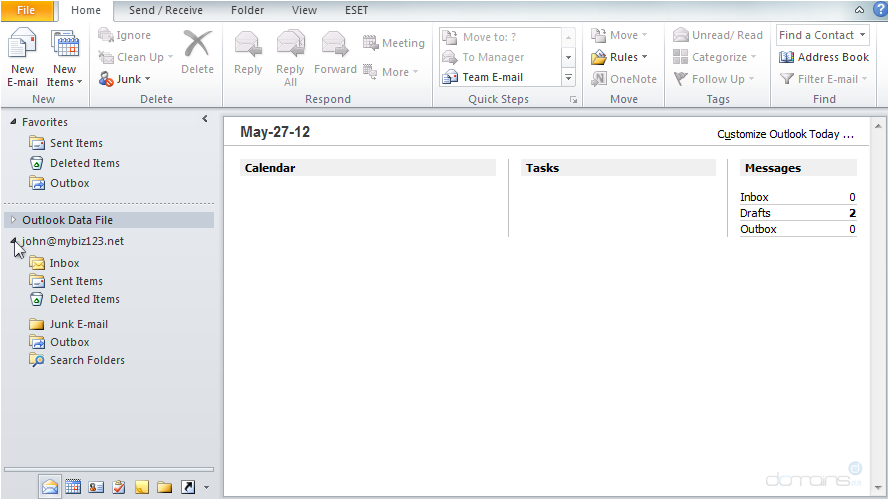
2. Check your internet connection to ensure it is stable and active.
3. Confirm that your incoming and outgoing server names and ports are accurate.
4. Ensure that SMTP authentication is enabled in your email client.
5. Restart the email application to refresh the connection.
6. Temporarily disable firewall or antivirus software to test interference.
Additional Information
- Error codes often provide valuable insight into the specific issue affecting your email client.
- Authentication errors typically indicate incorrect login credentials or security settings.
- Connectivity errors may point to network instability or server downtime.
- Regularly updating your email client helps maintain compatibility with modern protocols.
- Firewall and antivirus software can sometimes interfere with email connections.
Login to Hosted.com® Account
1. Go to the Hosted.com® website Account Login page.
2. Enter your Email and Password and click the Sign In button.

3. You will see the Hosted.com® Dashboard, displaying the Manage Account menu on the left and your Account Information, Account Overview and Open Support Tickets on the right.

Login to cPanel from your Hosted.com® Dashboard
4. Click on Manage Services to view the sub-dropdown menu and select the hosting package for the domain you want to work with – in our example we are using WordPress Hosting.
5. Click the Manage button to the right of the domain name you want to access.

6. The display will now show Product Information, Quick Manage, Resource Usage and Site Statistics for that domain name.

7. Under Product Information, scroll down to Control Panel, which will display cPanel to the right, and click on the Login button.

8. The cPanel Dashboard will now be displa


