


 Contact Support
 Sign In
This guide discusses accessing phpList and creating a new mailing list. If you want to send newsletters, announcements, promotional offers, or company updates, setting up a mailing list is the first step. A mailing list allows you to organize subscribers into groups, so your email campaigns are targeted, relevant, and professionally managed.
phpList is an open-source email marketing application that can be installed from Softaculous in cPanel and provides full control over subscriber management, campaign scheduling, list segmentation, bounce handling, and opt-in settings.
NOTE:
Hosted.com® does not permit the hosting or distribution of mailing lists on our infrastructure. Subscription forms created to collect email addresses for bulk marketing campaigns are also prohibited, as our platform strictly forbids the sending of spam, unsolicited, or mass email from shared hosting environments. These policies are in place to safeguard overall server performance, protect IP reputation, and maintain reliable email deliverability for all clients hosted on our network. If you need to control incoming or outgoing messages, we recommend using email filtering features to whitelist or blacklist specific email addresses or domain names instead of sending bulk communications.
TABLE OF CONTENTS
Access phpList from Your Hosted.com® Dashboard
Option 1: Access via Hosted.com® Client Area
1. Login to your Hosted.com® account.
2. Enter your registered email address and password.
3. Click Login.
4. From your dashboard, click the Manage Services dropdown menu.
5. Choose your active hosting plan and click Manage next to your domain.

6. Click Login to cPanel.
7. Scroll to the Software section.
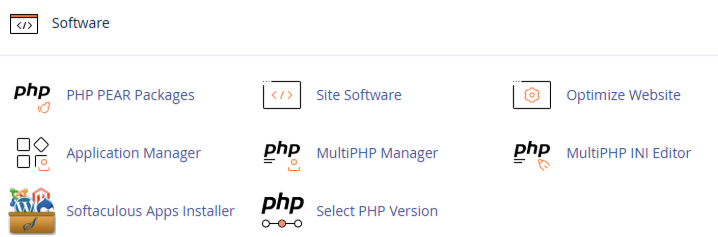
8. Click Softaculous Apps Installer.

9. Locate phpList under your installed applications.
10. Click the Admin URL to access the phpList dashboard.
Option 2: Direct Admin URL Access
If you already know your installation path:
1. Login to your Hosted.com® account.
2. Enter your phpList administrator username and password.
3. Click Login.
Create a New Mailing List
Once logged into phpList:
1. Click Lists in the top navigation menu.
2. Select Manage Lists.
3. Click Add a List.
Fill the required fields:
- List Name: Choose a clear name such as “Monthly Newsletter” or “Product Updates”.
- Description: Provide a short explanation of what subscribers can expect to receive.
- Owner: Confirm the administrator responsible for managing the list.
- Public: Choose whether the list will be visible for public subscription.
- Active: Ensure the list is enabled so subscribers can be added.
After completing the fields:
5. Click Save.
Your new mailing list is now created and ready to accept subscribers.
Next Steps After Creating Your List
- Add subscribers manually.
- Import subscribers via CSV file.
- Create a subscription form to collect signups from your website.
- Configure confirmation emails and double opt-in settings.
- Set up bounce handling for better list maintenance.
Additional Information
- Always obtain clear and documented consent before adding individuals to your mailing list, as sending unsolicited emails can damage your domain reputation and may violate data protection laws.
- Enabling double opt-in ensures that subscribers confirm their email address before being officially added to your list. This improves list quality and reduces spam complaints.
- Regular monitoring of bounce reports helps identify invalid or inactive email addresses, which should be removed to protect your sender reputation.
- Segmenting your mailing lists into smaller, targeted groups improves engagement rates and allows for more personalized communication.
- Hosted.com® hosting plans include specific outbound email limits, so it is important to review your package specifications before sending large campaigns.
- Scheduling large campaigns during off-peak server hours can improve sending performance and reduce strain on shared hosting environments.
- Maintaining a clean mailing list by periodically removing inactive subscribers improves open rates and overall campaign effectiveness.
- Always include an unsubscribe link in your campaigns to comply with international email marketing standards and maintain subscriber trust.
- Securing your phpList admin panel with strong passwords and restricted access permissions reduces the risk of unauthorized campaign distribution.
- If your campaigns grow significantly, consider SMTP optimisation or dedicated email sending services for higher throughput and deliverability control.
Login to Hosted.com® Account
1. Go to the Hosted.com® website Account Login page.
2. Enter your Email and Password and click the Sign In button.

3. You will see the Hosted.com® Dashboard, displaying the Manage Account menu on the left and your Account Information, Account Overview and Open Support Tickets on the right.

Login to cPanel from your Hosted.com® Dashboard
4. Click on Manage Services to view the sub-dropdown menu and select the hosting package for the domain you want to work with – in our example we are using WordPress Hosting.
5. Click the Manage button to the right of the domain name you want to access.
6. The display will now show Product Information, Quick Manage, Resource Usage and Site Statistics for that domain name.

7. Under Product Information, scroll down to Control Panel, which will display cPanel to the right, and click on the Login button.

8. The cPanel Dashboard will now be displa


