 Contact Support
 Sign In


This guide explains how to upgrade a scripts by Softaculous in cPanel, from your Hosted.com® account.
Keeping web hosting applications regularly updated is essential for maintaining security, performance, and compatibility. Softaculous makes it easy to upgrade installed scripts with just a few clicks, ensuring your website remains protected against vulnerabilities.
DISCLAIMER:
Before proceeding with any script upgrade, it is strongly recommended that a full backup of the website is created. This ensures that the site can be quickly restored if anything goes wrong during the update process. Upgrades performed without a backup in place may result in data loss or unexpected site issues. For this reason, the backup should always be completed prior to starting the upgrade.
TABLE OF CONTENTS
How to Upgrade a Script
1. Login to your Hosted.com® Client Portal.
2. Navigate to Manage Services from the main dashboard.
3. Select your Web Hosting service.
4. Click Manage next to the domain you wish to access.
5. Click Login to cPanel to open your control panel.

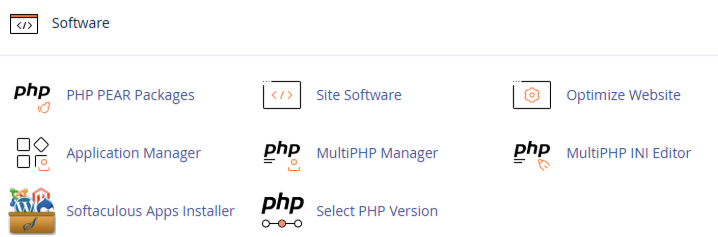
6. Locate and open Softaculous Apps Installer, under Software.
7. Click All Installations.
8. Locate the script you wish to upgrade.
9. If an update is available, click Upgrade to begin the process.
10. Follow any additional prompts if required.
Once complete, your script will be updated to the latest version.
Additional Information
- Regular updates are critical for website security, as outdated scripts are one of the most common causes of vulnerabilities.
- Updates often include bug fixes, performance improvements, and new features.
- Before upgrading, it is strongly recommended to create a backup of your website. This ensures you can restore your site if anything goes wrong during the update process.
- You should also check plugin and theme compatibility, as major updates can sometimes affect how your website functions.
Login to Hosted.com® Account
1. Go to the Hosted.com® website Account Login page.
2. Enter your Email and Password and click the Sign In button.

3. You will see the Hosted.com® Dashboard, displaying the Manage Account menu on the left and your Account Information, Account Overview and Open Support Tickets on the right.

Login to cPanel from your Hosted.com® Dashboard
4. Click on Manage Services to view the sub-dropdown menu and select the hosting package for the domain you want to work with – in our example we are using WordPress Hosting.
5. Click the Manage button to the right of the domain name you want to access.

6. The display will now show Product Information, Quick Manage, Resource Usage and Site Statistics for that domain name.

7. Under Product Information, scroll down to Control Panel, which will display cPanel to the right, and click on the Login button.
8. The cPanel Dashboard will now be display


