 Contact Support
 Sign In


This article covers reasons why Microsoft Outlook will download duplicate messages from the Email Hosting server, which can be a source of frustration for users. It is important to comprehend the root causes of this problem to facilitate effective troubleshooting and resolution.. It is important to understand causes for this problem to help troubleshoot and resolve it as quickly as possible.
TABLE OF CONTENTS
Why Outlook Will Download Duplicate Messages
Below are the four main reasons why Outlook may download duplicate messages and how you can fix it:
Outlook Download Duplicate Messages from POP3 Server:
This issue happens when Outlook fetches messages from a POP3 (Post Office Protocol 3) server again after the Deleted Items folder has been cleared.
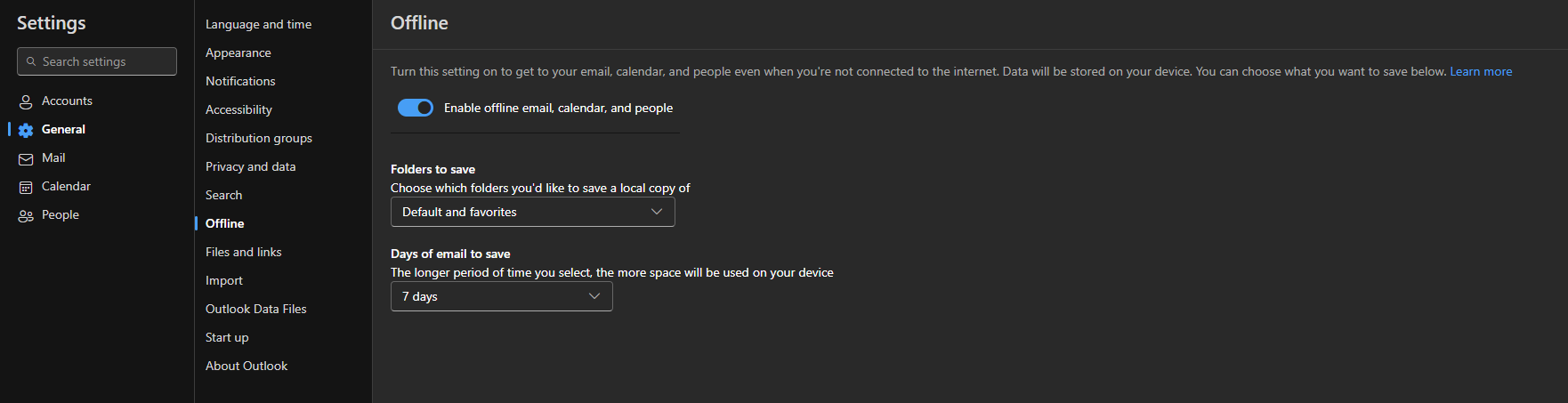
Even with the options “Leave a copy of messages on the server” and Remove from server when deleted from Deleted Items activated, a background synchronization may happen simultaneously or immediately after the deletion process. This timing conflict can result in Outlook downloading messages again.
Resolution:
To resolve this issue, avoid enabling synchronization at the same time as you clear the Deleted Items folder. While this problem does not lead to data loss (aside from intentionally deleted emails), you can manually delete any duplicate messages that may appear.
Password Prompt with Multiple POP3 Accounts
If your Outlook client profile has two POP3 accounts directed to the same server, you may be prompted to enter a password for one of them. This scenario can result in the receipt of duplicate email messages.
Resolution:
To resolve this, disable receiving email for one or more of the POP3 accounts by navigating to Outlook > Tools > Send/Receive Settings > Define Send/Receive Groups.
Next, select the group containing both accounts, choose one account, and uncheck the Receive Mail Items option.
Duplicated POP3 Headers
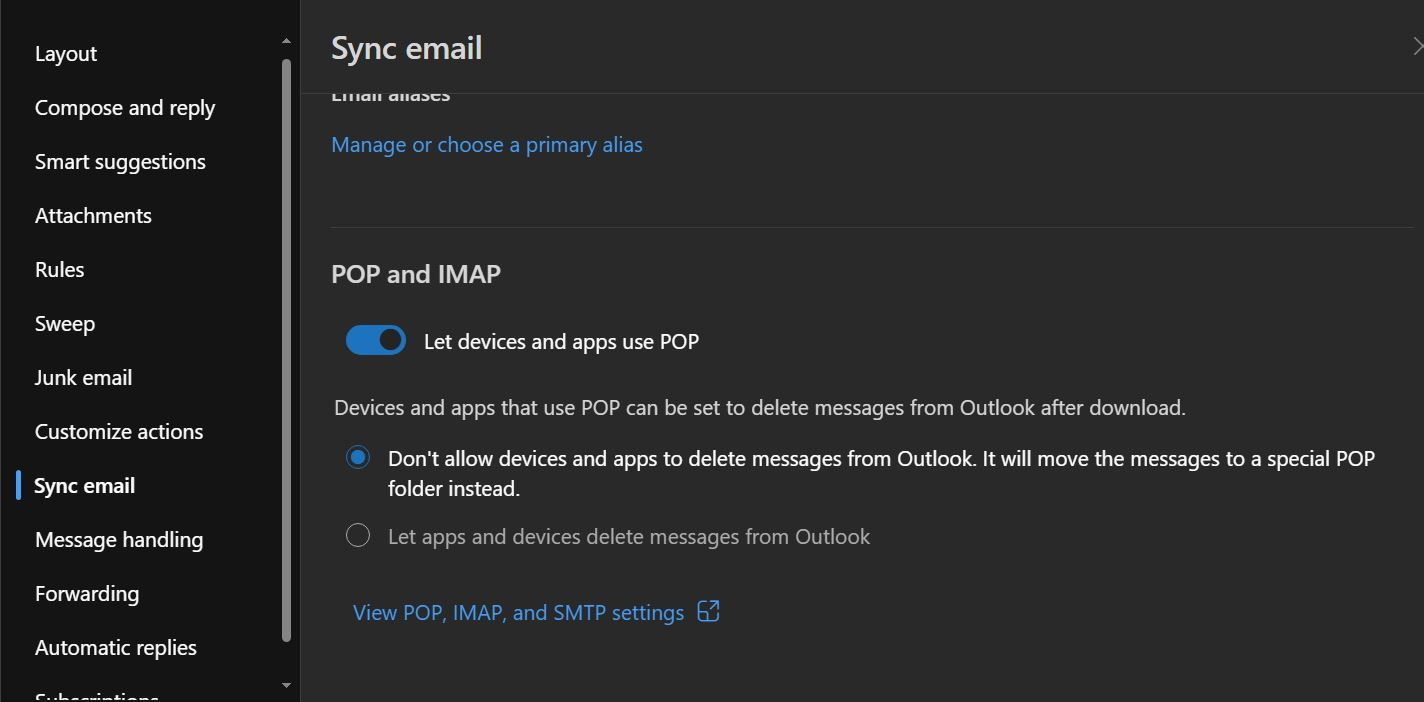
Pressing F9 while online to synchronize your Microsoft Exchange mailbox with your offline .ost file can lead to headers from your POP3 account being downloaded twice. This occurs because headers are stored in the .ost file alongside messages from your Exchange account during offline usage, resulting in duplicates upon synchronization.
Resolution:
Enable the “Download Complete Item including attachments option in your POP3 account settings. Go to Outlook > Tools > Send/Receive Settings > Define Send/Receive Groups, select the group name, edit it, and enable this option.
Antivirus Software Interference
Antivirus programs that scan emails can also contribute to Outlook downloading duplicate messages. Large messages may cause a timeout before the server flags them as read, resulting in repeated downloads.
Resolution:
Login to your mail server and delete any problematic messages causing duplication. Ensure you have downloaded all necessary messages and attachments before performing this action.
Additional Information
If you find the above methods aren’t working, here are a few tips to help you troubleshoot further.
Verify for Duplicate Accounts – Confirm that you do not have several instances of the same email account configured in Outlook. The presence of duplicate accounts may result in the repeated downloading of emails.
Choose IMAP Over POP3 – If feasible, consider transitioning from a POP3 setup to IMAP (Internet Message Access Protocol). IMAP is designed to handle emails more effectively across various devices, thereby decreasing the chances of duplicates.
Check Background Processes – Ensure that only a single instance of Outlook is active on your computer. Inspect the Task Manager for any duplicate instances of outlook.exe, as having multiple processes can lead to the reception of duplicate messages.
Examine Synchronization Settings – Modify synchronization settings to prevent overlaps with actions such as clearing the Deleted Items folder or logging into multiple accounts at the same time.
Organize Your Inbox – Periodically tidy up your inbox by deleting unwanted emails and spam, which can help minimize confusion and potential duplication problems.


