 Contact Support
 Sign In


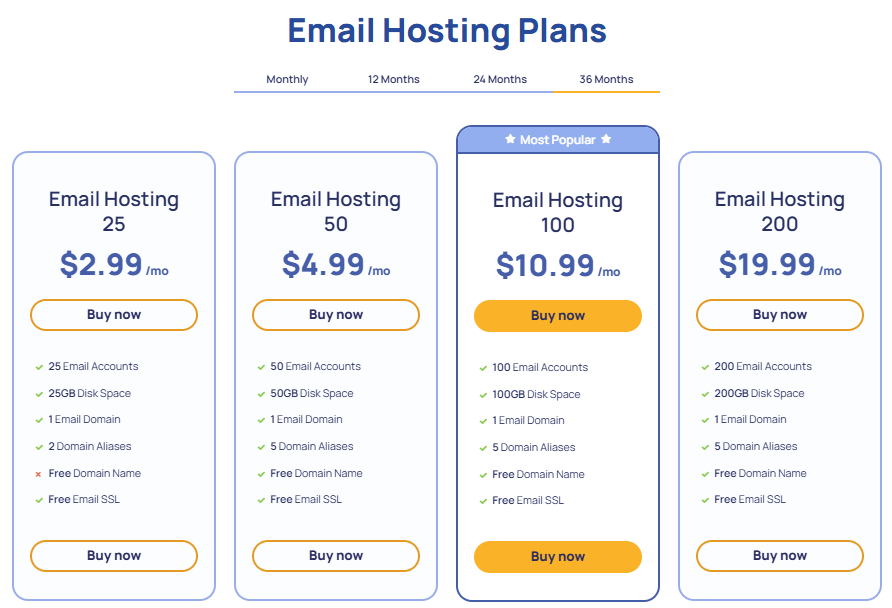
Email hosting plans provide the services required to manage email communication using your own domain name. These plans enable users to create professional email addresses, securely store messages, and access their accounts through webmail or third-party email clients.
For businesses and individuals alike, email hosting is an important component of maintaining a website. The Hosted.com® email hosting plans are designed to offer reliability, security, and flexibility to meet a wide range of communication needs
TABLE OF CONTENTS
Key Features of Email Hosting Plans
- Custom domain-based email addresses.
- Secure and reliable mail servers.
- Spam filtering and virus protection.
- Email storage and archiving.
- Access via webmail and third-party clients.
Additional Information
- Email hosting is often included as part of a broader web hosting package.
- Professional email addresses enhance credibility and brand identity.
- Storage limits and features vary depending on the hosting plan selected.
- Built-in security features help protect against email spam, malware, and phishing attacks.
- Multiple email accounts can be created for teams or departments.
- Backup options may be available to safeguard important data.
- Choosing the right plan depends on your usage requirements.
- Email archiving is not managed on the server side and must be configured within your email client or software, provided the client supports archiving functionality.
- All emails are securely backed up on our servers using Acronis, ensuring that your data is protected and can be restored if required.
Login to Hosted.com® Account
1. Go to the Hosted.com® website Account Login page.
2. Enter your Email and Password and click the Sign In button.

3. You will see the Hosted.com® Dashboard, displaying the Manage Account menu on the left and your Account Information, Account Overview and Open Support Tickets on the right.

Login to cPanel from your Hosted.com® Dashboard
4. Click on Manage Services to view the sub-dropdown menu and select the hosting package for the domain you want to work with – in our example we are using WordPress Hosting.
5. Click the Manage button to the right of the domain name you want to access.

6. The display will now show Product Information, Quick Manage, Resource Usage and Site Statistics for that domain name.

7. Under Product Information, scroll down to Control Panel, which will display cPanel to the right, and click on the Login button.

8. The cPanel Dashboard will now be displa


