 Contact Support
 Sign In


This guide explains the steps required to install Nucleus CMS using Softaculous in your Hosted.com® hosting environment.
Softaculous is a powerful auto-installer available within cPanel that allows you to quickly deploy a wide range of applications, including content management systems like Nucleus CMS. Installing Nucleus through Softaculous simplifies the process by automating database creation and configuration.
TABLE OF CONTENTS
How To Install Nucleus
1. Login to your Hosted.com® Client Portal.
2. Navigate to Manage Services from the main dashboard.
3. Select your Web Hosting service.
4. Click Manage next to the domain you wish to access.
5. Click Login to cPanel to open your control panel.

6. Locate and open Softaculous Apps Installer, under Software.
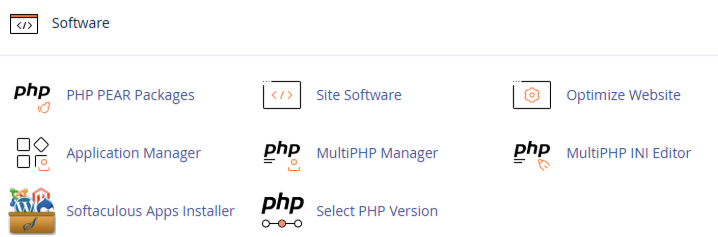
7. Search for Nucleus CMS in the list of available applications.
8. Click on the application to open its overview page.
9. Select Install.
10. Choose the domain where you wish to install Nucleus.
11. Enter a directory name (leave blank to install on the root domain).
12. Specify a database name (or use the default).
13. Enter your Site Name and Site Description.
14. Create your Admin Username, Password, and Email Address.
15. Click Install.
Once completed, you can access your new site using the provided links.
Additional Information
- Installing applications via Softaculous is one of the easiest ways to launch a website quickly.
- It handles most of the technical setup automatically, reducing the risk of configuration errors.
- After installation, it is important to secure your admin account with a strong password and keep your CMS updated.
- You should also explore themes, plugins, and customization options within Nucleus to tailor your site to your needs.
- If you plan to run a production website, consider setting up regular backups and security measures to protect your data and ensure long-term stability.
Login to Hosted.com® Account
1. Go to the Hosted.com® website Account Login page.
2. Enter your Email and Password and click the Sign In button.

3. You will see the Hosted.com® Dashboard, displaying the Manage Account menu on the left and your Account Information, Account Overview and Open Support Tickets on the right.
Login to cPanel from your Hosted.com® Dashboard
4. Click on Manage Services to view the sub-dropdown menu and select the hosting package for the domain you want to work with – in our example we are using WordPress Hosting.
5. Click the Manage button to the right of the domain name you want to access.

6. The display will now show Product Information, Quick Manage, Resource Usage and Site Statistics for that domain name.

7. Under Product Information, scroll down to Control Panel, which will display cPanel to the right, and click on the Login button.

8. The cPanel Dashboard will now be display


