 Contact Support
 Sign In


By uploading your backup through cPanel, you can ensure all files, folders, and directories are properly restored to your hosting account. Understanding the steps and best practices will help you avoid common errors and maintain your website’s functionality.
IMPORTANT:
Although we have included the process below, we do NOT recommend using the cPanel interface for backing up your website. Added to this, a full backup can ONLY be used to keep a copy on your server or desktop, or when moving your account to another server – it CANNOT be used for a Restore Back Up through the cPanel interface.
TABLE OF CONTENTS
How to Upload a Website Backup with File Manager in cPanel
1. Login to your Hosted.com account.
2. Navigate to your hosting plan from the Manage Services menu.
3. Click Manage next to the hosting plan associated with your current domain.

4. Select Login next to Control Panel to access cPanel.
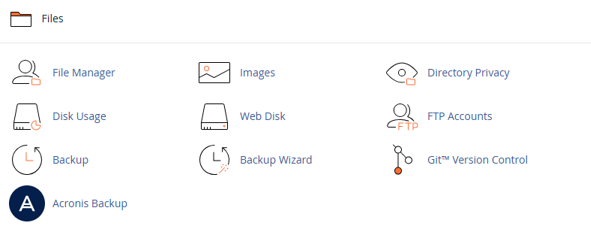
5. Go to File Manager in the Files section.
6. Navigate to the document root of your website. For your main domain, this is usually public_html folder. For addon domains, it will be the folder you assigned when adding the domain.
7. Click Upload in File Manager. Select the backup file from your computer (usually a .zip, .tar.gz, or .backup file). Wait for the upload to complete. Large files may take several minutes depending on your internet speed.
8. Once uploaded, locate the backup file in File Manager. Right-click the file and select Extract. Choose the correct directory where the files should be restored (usually your website’s root folder). Confirm extraction, and all files and folders will be placed in their original structure.
9. Ensure that folders typically have 755 permissions and files have 644 permissions. Incorrect permissions can prevent your website from loading correctly or cause errors with scripts.
10. Open your domain in a web browser to confirm that the website is functioning correctly. Check pages, images, links, and scripts to ensure everything was restored properly.
How to Backup a Website in cPanel
For a precise and accurate backup of your website and its restoration of those backed up folders and files, please follow the steps below. For this example, we are using a WordPress website.
Part 1: To Display Hidden Files Set Your Preferences First
1. In the cPanel Dashboard, scroll down to the Files section and select File Manager a new browser tab will open to the right.
2. Click Settings and the Preferences pop-up window will display.
3. Tick the Show Hidden Files (dotfiles) checkbox and then click Save.
Part 2: Backing Up the ETC Folder & Files
4. Select the etc Folder and double-click the Domain Name Folder, which will be the domain to be backed up.
5. Click Select All and then click the Compress icon (far right of the top menu).
6. Select Zip Archive and Enter the name of the compressed archive in the text field below, changing the file name to “etc“. Click Compress Files.
7. Compression Results will display in the window, and you can click Close.
8. Right click the .zip file and download to your Local Drive in a backup-specific folder of your choice.
IMPORTANT:
Please note to ensure that the zipped file is named “etc”, as this is the reference we are using in this guideline, making it easier to follow.
Part 3: The MAIL Folder Backup
9. Select the Mail Folder on the left-hand side and double-click the Domain’s Folder that you are backing up.
10. Right click on the Admin Folder and select Compress.
11. In the opened window, select Zip Archive and Enter the name of the compressed archive in the text field, changing it to mail and then click Compress Files.
12. Download the new zip file to the backup-specific folder on your Local Drive.
Part 4: Backup the PUBLIC_HTML Folder
13. Select the public_html Folder, and as before click Select All, select Compress.
14. Select Zip Archive and Enter the name of the compressed archive in the text box and change it to public and click Compress Files.
15. Download the zip file to your Backup folder on the Local Drive.
Part 5: WordPress Site Only – In WP-CONFIG.PHP File Copy the Database Name
16. Right click the wp-config.php File under public_html Folder and select Edit.
17. Click the Edit button in the pop-up window.
18. Copy the Database Name and paste it into a Text document (e.g. Notepad, Notepad++) for referencing later.
Part 6: Export the Database
19. Return to the cPanel Dashboard (select the cPanel browser tab) and scroll to Databases and select phpMyAdmin.
20. Click the Database Name on the left-hand side.
21. Click Export on the top menu bar.
22. Leave the default Format: SQL.
23. Click the Export button.
NOTE:
Good practice is to include the date of the backup to the Backup Folder name. Ensure that regular backups are performed.
How to Restore Backup Files
Part 7: Restoring the .ZIP Files from a Backup Folder
IMPORTANT:
Before restoring a backup be aware that you will be overwriting ALL current existing files. It is therefore highly recommended that you perform another backup of the current data (even if it is corrupted) in the event that you need to refer back to it for whatever reason. It is also advised that you ascertain if it is relevant to restore all your backup folders or not. For example, it may be unnecessary to overwrite Mail, unless you are performing a complete website restore.
25. After logging in to your cPanel Dashboard, select File Manager in the Files section.
26. Click Settings and in the Preferences window tick the Show Hidden Files (dotfiles) checkbox and Save.
27. Select the etc Folder and click the Upload icon.
28. Select the etc .zip Folder Downloaded in Part 2 above.
29. Click the Go Back arrow.
30. You can either right click the zip file and select Extract, or you can select the zip file and click Extract in the top bar.
31. Click the Extract button in the window. Close the Extraction Results dialogue box.
32. Select the mail Folder and repeat the above process with the downloaded mail zip file.
33. Next follow the same process for the public_html Folder.
Part 8: Create a Database if Required
34. Go back to the cPanel Dashboard browser tab and select Database Wizard under Databases.
35. Copy the Database Name that you saved to Notepad in Step 18 above and paste it in the text field and click Next Step.
36. Under Create Database User, enter a Username and Save it to Notepad to access later.
37. Click Password Generator and save the Password to Notepad as well.
38. Click the checkbox: I have copied the password to a safe place.
39. Click Use Password then click Create User.
40. Tick the ALL PRIVILEGES checkbox and then Make Changes.
41. Click Return Home.
Part 9: Restoring the Database from the Backup Zip Folder
42. On the cPanel Dashboard, select phpMyAdmin under the Databases section.
43. Select the Database on the left and click Import on the top navigation bar
44. Click Choose File – select the Database ZIP File downloaded in Part 6 above. Click Import.
Part 10: Editing the WP-CONFIG.PHP File with the Created Database Details
45. Got to your cPanel Dashboard and select File Manager under the Files section.
46. Click on the public_html Folder in the left menu, right-click on the wp-config.php File and select Edit.
47. Click the Edit button.
48. Update the DB_NAME, DB_USER and DB_PASSWORD with the new details that you saved to Notepad.
49. Click Save Changes.
You have successfully Backed up and restored your website.
Additional Information
- Database Restores: If your backup includes a database (e.g., WordPress or Joomla), you will need to restore it via phpMyAdmin or MySQL Databases in cPanel. Ensure configuration files like wp-config.php are updated with the correct database credentials.
- Large Backup Files: For backups larger than the upload limit, consider splitting the archive or using FTP or SSH for faster transfers.
- Backup Retention: Always keep a copy of your original backup on your local device until you’re certain the restoration is complete.
- SSL & Configurations: After restoring a website, check that SSL certificates, .htaccess rules, and any custom configurations are intact.
- File Conflicts: If you are uploading to a folder with existing files, cPanel may prompt you to overwrite files. Ensure you do not overwrite important files unintentionally.
- Regular Backups: Use cPanel’s Backup or Backup Wizard tools to create scheduled backups, so future restorations are quick and secure.


