


 Contact Support
 Sign In
Email accounts can be configured from POP3 to IMAP, depending on how you want your emails stored and accessed. POP3 downloads messages to a single device, while IMAP keeps emails on the mail server and synchronizes across all connected devices.
If you access your email from multiple devices, need consistent folder synchronization, or want your messages safely stored on the server, switching from POP3 to IMAP is recommended. This guide explains how to change an existing POP3 email account to IMAP using Hosted.com® email settings.
TABLE OF CONTENTS
Important Note Before You Begin
Email applications do not allow an existing POP3 account to be directly converted to IMAP. To switch protocols, you must remove the POP3 account from your email client and re-add it as an IMAP account.
Before continuing:
- Back up any important locally stored emails
- Ensure you have your correct email password and server details
How to Change a POP3 to IMAP
1. Login to your Hosted.com® account.
2. From the dashboard, open the Manage Services dropdown menu and choose the hosting service linked to the domain you wish to manage.
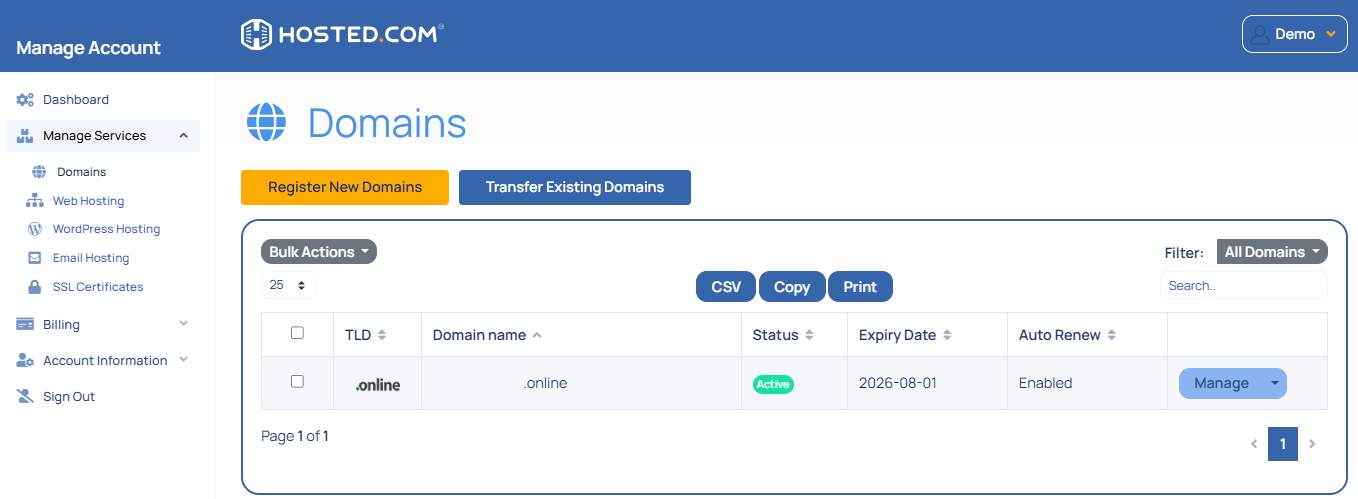
3. Click Manage next to your domain, and on the following page, select Login to access cPanel.

4. In cPanel, go to Email and select Email Accounts.

5. Find the email address you want to update and click Connect Devices.
Make a note of:
Incoming server (IMAP).
IMAP port number (SSL and non-SSL).
Outgoing server (SMTP).
SMTP port.
Username (full email address).
Encryption type.
Remove the Existing POP3 Account from Your Email Client
On the device or email application where the account is currently set up:
1. Open the email application settings.
2. Select the POP3 email account.
3. Choose Remove, Delete, or Sign Out, depending on the application.
4. Confirm the removal.
This does not delete the email account from the server; it only removes it from the device.
Re-Add the Email Account Using IMAP
1. Open your email application and select Add Account.
2. Enter your email address and password.
3. When prompted to choose an account type, select IMAP.
4. Enter the IMAP and SMTP settings you recorded earlier.
5. Complete the setup process. IMAP synchronization may take some time, especially if your mailbox contains a large number of emails.
6. Initial syncing can take several minutes.
7. Older emails and folders may appear gradually.
That’s it! Your email account is now configured using IMAP.
Additional Information
Key Differences Between POP3 or IMAP
- POP3: Downloads emails to a single device and does not synchronize across multiple devices.
- IMAP: Stores emails on the server and keeps all devices in sync, including folders and read status.
IMAP Configuration Considerations
- IMAP requires an active internet connection to view emails.
- Mailbox size depends on your hosting plan’s storage limits.
- Deleting an email on one device removes it from all connected devices.
Best Practices When Switching to IMAP
- Back up locally stored POP3 emails before removing the account.
- Use IMAP if you access email from more than one device.
- Enable SSL/TLS for secure email communication.
- Regularly archive or clean up emails to manage mailbox size.


